 Folders
How to free RAM on Android 14 and newer, now that apps can't close other apps
Since Android 14, RAM cleaner apps can't close background apps any more. Here's why, when freeing memory actually helps, and how Folders' Extreme mode still does it, safely.
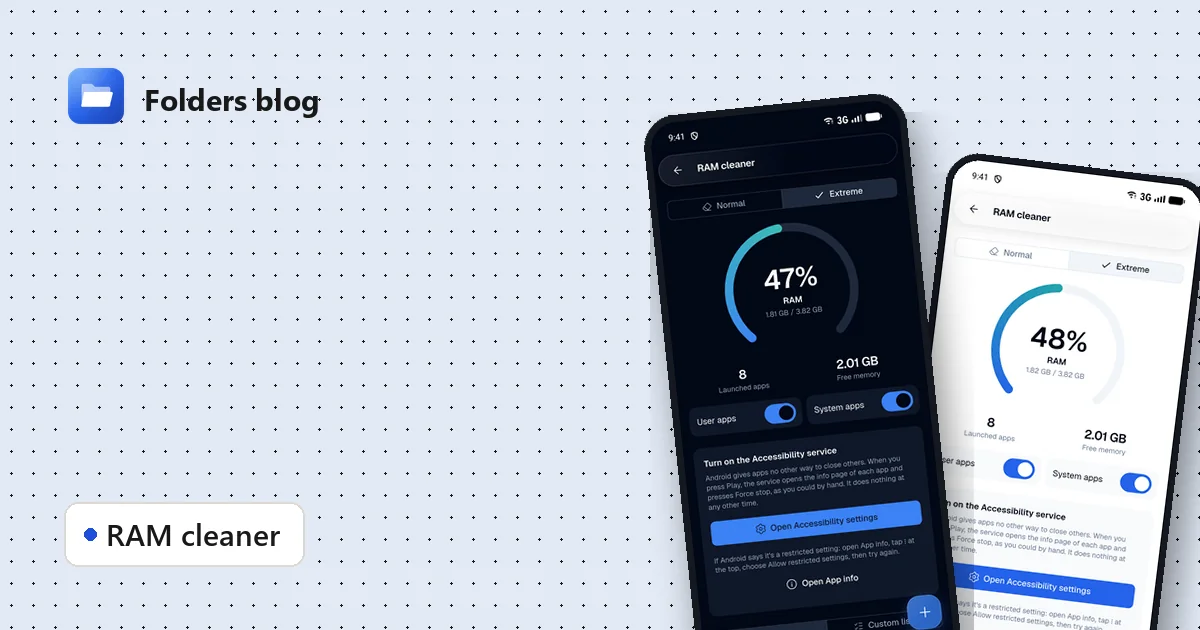
If you’ve used a “RAM booster” on a phone with Android 14 or newer, you may have noticed it doesn’t seem to do much any more. That’s not your imagination. Android changed the rules.
What changed in Android 14
Older versions of Android let any app ask the system to close other apps’ background processes. That’s how most RAM cleaners worked: one tap, and every app in the background was gone.
From Android 14, an app can only close its own background processes. The same request aimed at other apps is ignored. Google made the change because many cleaner apps closed things users wanted to keep, which then restarted and used even more battery.
So a cleaner that still claims to “boost” a modern phone with one tap is, at best, closing itself.
Do you even need to free RAM?
Honestly, often not. Android manages memory well: apps in the background are kept ready so they open instantly, and the system closes them by itself when memory runs low. Unused RAM doesn’t make a phone faster.
Freeing memory does help in a few cases:
- an app misbehaves and keeps running when it shouldn’t;
- you’re about to play a demanding game or record long video on a phone with little RAM;
- the phone feels sluggish and you want a clean slate without restarting.
For those moments, it’s useful to have a tool that does it properly, and tells you the truth about what it did.
Folders’ RAM cleaner
Open the side menu, tap Toolbox, then RAM cleaner. You’ll see how much memory is in use, how many apps have been launched and how much memory is free.
There are two modes:
- Normal shows your memory use and, on Android 13 and older, closes background apps the way cleaners always did.
- Extreme is for Android 14 and newer, where Normal can’t close other apps.
How Extreme mode works
There’s still one way to close an app on a modern phone: its Force stop button in Settings. You can do that by hand for each app; Extreme mode does it for you.
When you press Play, Folders uses an Accessibility service to open each app’s info page and press Force stop, one after another, behind a progress screen. It only does this during a run that you started, and does nothing at any other time.
You choose what’s included:
- User apps and, if you like, System apps;
- All apps or a Custom list;
- an exception list for apps that must never be stopped, like your music player or a messenger you rely on.
Turning it on the first time
- In the RAM cleaner, choose Extreme and tap Open Accessibility settings.
- Find Folders in the list and turn its service on.
- If Android says it’s a restricted setting, go back, tap Open App info, tap the ⋮ menu at the top, choose Allow restricted settings, then try again. Android 13 and newer ask this for apps installed from outside a store.
What the result means
After a run, Folders reports only what it measured: which apps Android marks as stopped, and how much memory is free now. Some apps start again right away because the system itself binds to them (a browser’s usage service, for example). That isn’t a failure of the cleaner; Android is restarting them on purpose.
Settings screens look different from one phone maker to another. If Extreme mode misses an app on your phone, tell us on GitHub with your phone’s model, and we’ll look at it.
RAM cleaning on a computer
The RAM cleaner works on Windows and Linux too, in the way each system allows:
- Windows: Folders asks programs to give back memory they aren’t using (it empties their working sets). Nothing is closed, so you don’t lose unsaved work.
- Linux: Folders drops the file cache, which needs your password.
Computers don’t get an Extreme mode on purpose: closing programs could lose your work.
Free space, not just memory
If your phone is slow because storage is nearly full, freeing RAM won’t help, but clearing space will. Folders’ Toolbox has two tools for that: the junk cleaner and the duplicate finder.
Keep reading
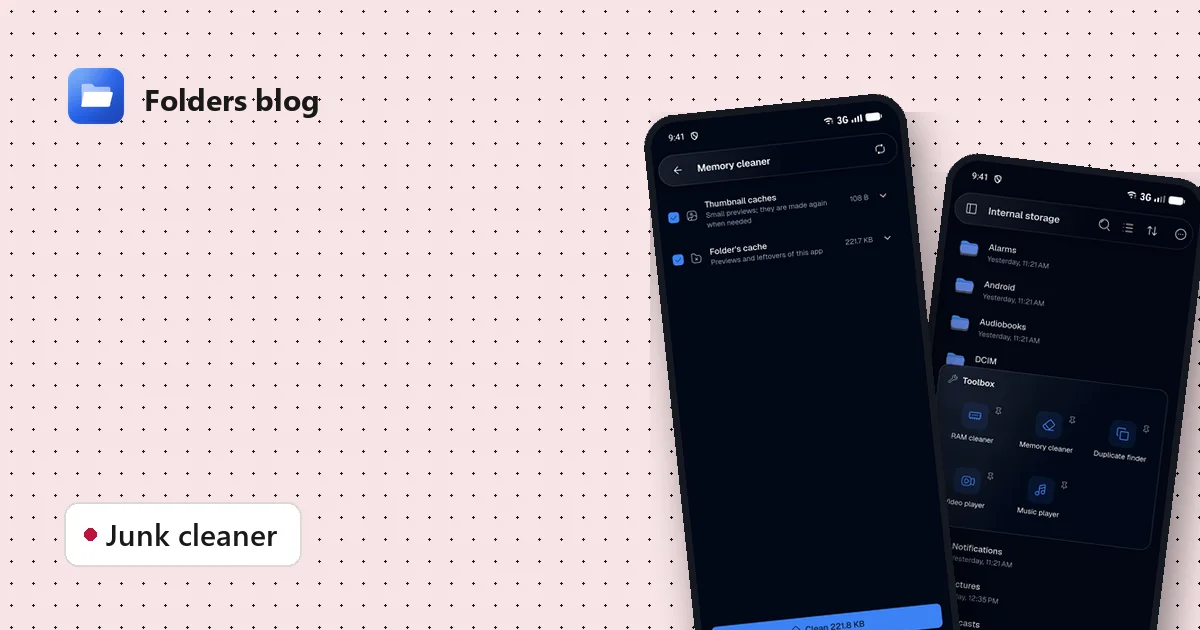
How to clean junk files on Android without deleting anything you need
Free up storage by clearing thumbnail caches, leftovers and other junk, with a cleaner that only ticks what's certainly safe to delete and shows you everything else first.
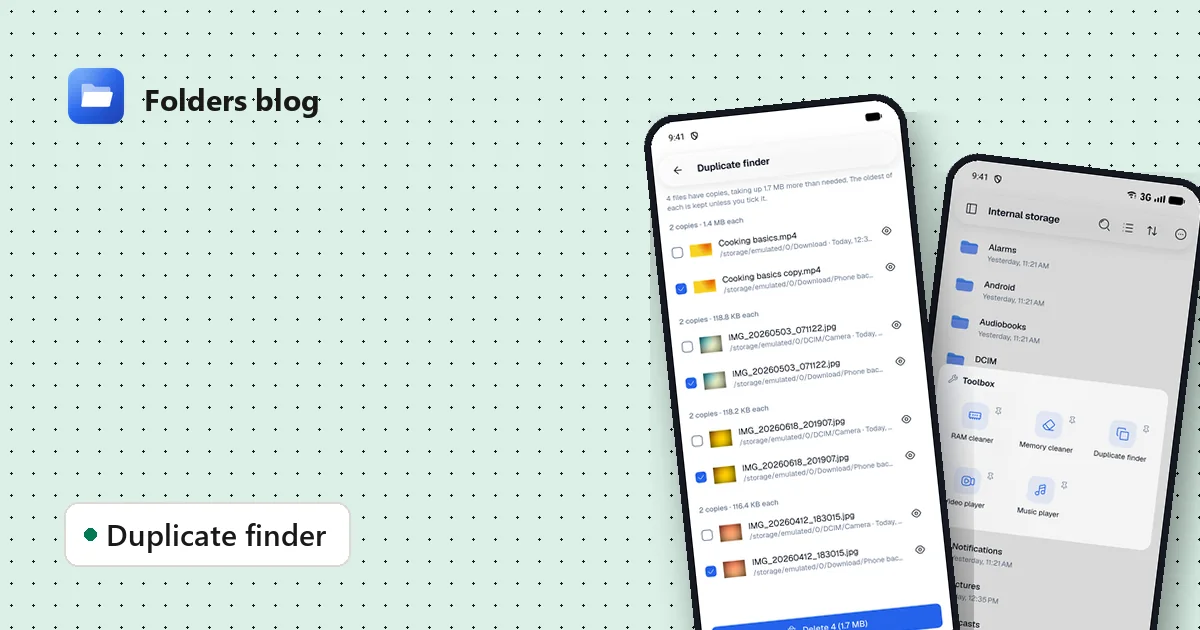
How to find and remove duplicate files safely
Duplicate photos, videos and downloads waste gigabytes. Find true copies by their contents, not their names, keep the oldest of each and delete the rest, on Android, Windows or Linux.
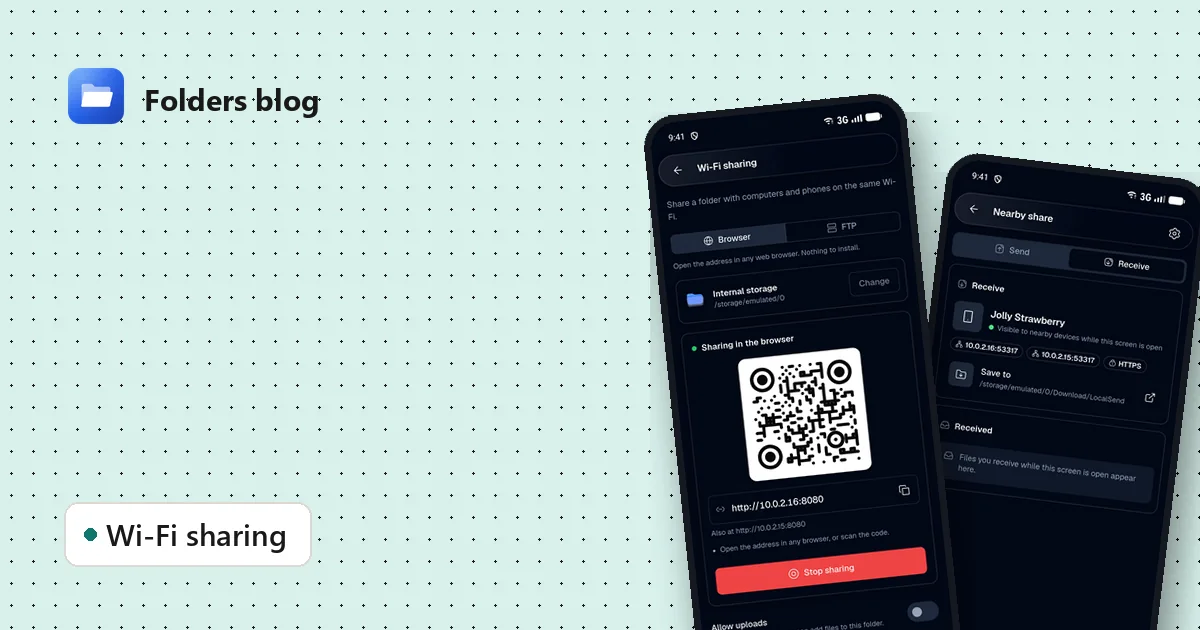
How to move files between your phone and PC over Wi-Fi, without a cable
Two free ways to send photos, videos and documents between Android and a computer on the same Wi-Fi: a browser link with a QR code, or Nearby share that works with LocalSend.