 Folders
How to find and remove duplicate files safely
Duplicate photos, videos and downloads waste gigabytes. Find true copies by their contents, not their names, keep the oldest of each and delete the rest, on Android, Windows or Linux.
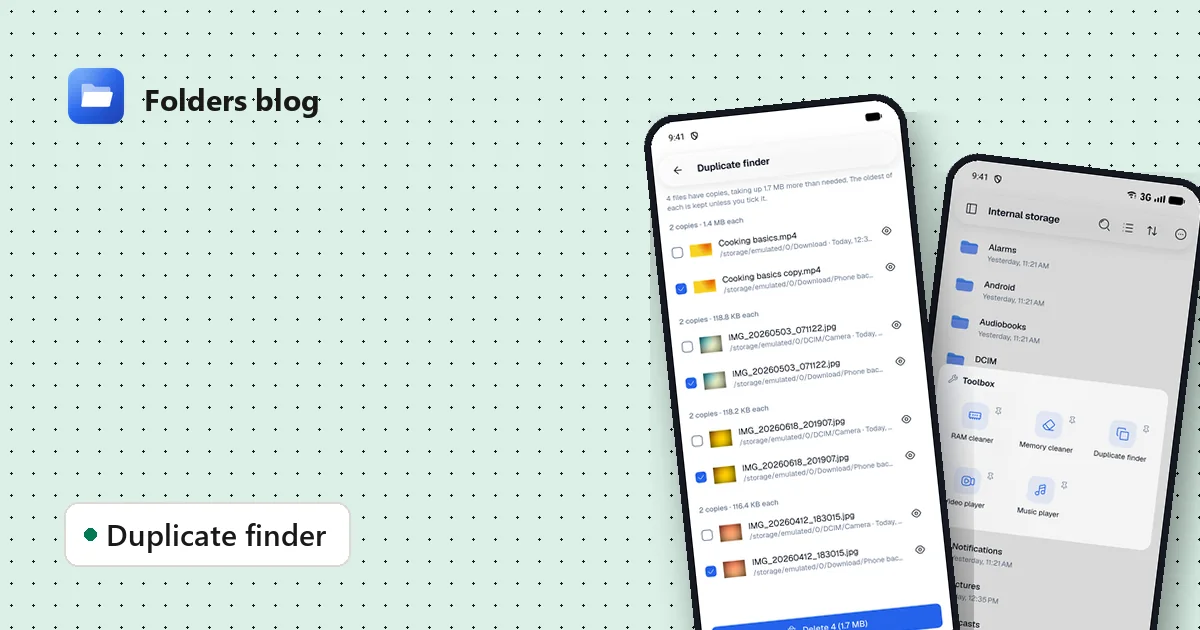
Duplicates sneak in everywhere: the same photo saved from three chats, a video downloaded twice, a backup folder copied onto the phone “just in case”. Each copy is small, but together they can take up gigabytes.
The hard part isn’t deleting them. It’s being sure two files really are the same before you delete one.
Why file names don’t tell you anything
IMG_2041.jpg and IMG_2041 (1).jpg look like copies but might be different photos. photo.jpg and holiday-beach.jpg might be the very same picture. Names change when files are shared, downloaded or backed up, so a duplicate finder that compares names gets it wrong both ways.
Folders’ duplicate finder compares what’s inside the files instead.
How Folders knows two files are identical
It works in three passes, each one only on the files that are still candidates:
- Size. Files with different sizes can’t be identical, so they’re set aside at once. This is fast, even across thousands of files.
- The start of the file. Files of the same size have the beginning of their contents fingerprinted (hashed). Most look-alikes already differ here.
- The whole file. Only the files that still match are fingerprinted in full. If the full fingerprints match, the files are identical, byte for byte.
This way, big videos are only read in full when they really might be copies, and the result is exact. No guessing from names, dates or thumbnails.
Find duplicates in Folders
- Open the side menu, tap Toolbox, then Duplicate finder.
- Under Look in, choose where to search: all of your storage, or one folder such as DCIM or Download.
- Tap Find duplicates.
The results come in groups, one group per file that has copies, for example 2 copies · 1.4 MB each. At the top, Folders tells you how much space they waste: 4 files have copies, taking up 1.7 MB more than needed.
What gets deleted
In every group, the oldest copy is kept and the others are ticked. The oldest is usually the original, the one in your camera folder rather than in a chat download.
- Tap the eye next to any file to look at it first.
- Untick a copy you’d rather keep, or tick a different one.
- Press Delete at the bottom. The button shows how many files and how much space, for example Delete 4 (1.7 MB).
There’s a safety net: if you tick every copy in a group, Folders warns you that no copy of that file would be left, before anything is deleted.
On Windows and Linux
The duplicate finder works the same way on a computer, which is where duplicates pile up fastest: downloads folders, old phone backups, photo exports. Point it at one folder at a time for quick, clear results.
Tips for a cleaner phone
- Search Download and chat folders first. That’s where most accidental copies live.
- Keep your camera folder as the original. Since the oldest copy is kept, photos you took yourself usually win.
- Run it after unpacking archives. Extracting a ZIP of photos you already have is a classic source of duplicates. See how to open ZIP, RAR and 7z files.
Duplicates are one kind of wasted space; caches and leftovers are another. Next: how to clean junk files on Android without deleting anything you need.
Keep reading
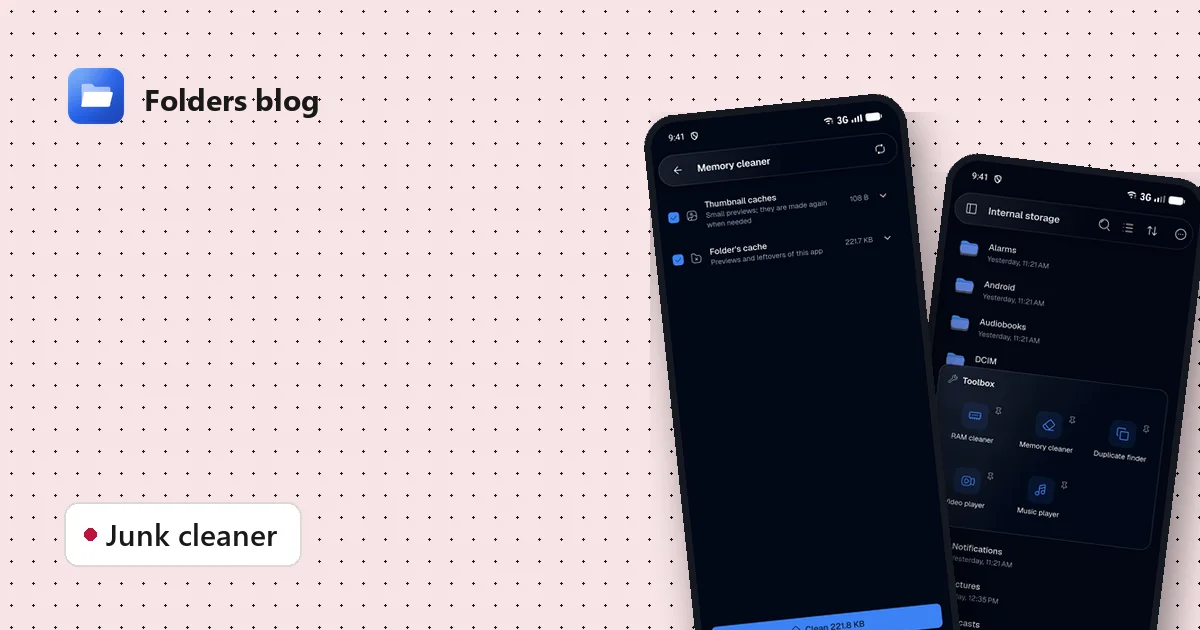
How to clean junk files on Android without deleting anything you need
Free up storage by clearing thumbnail caches, leftovers and other junk, with a cleaner that only ticks what's certainly safe to delete and shows you everything else first.
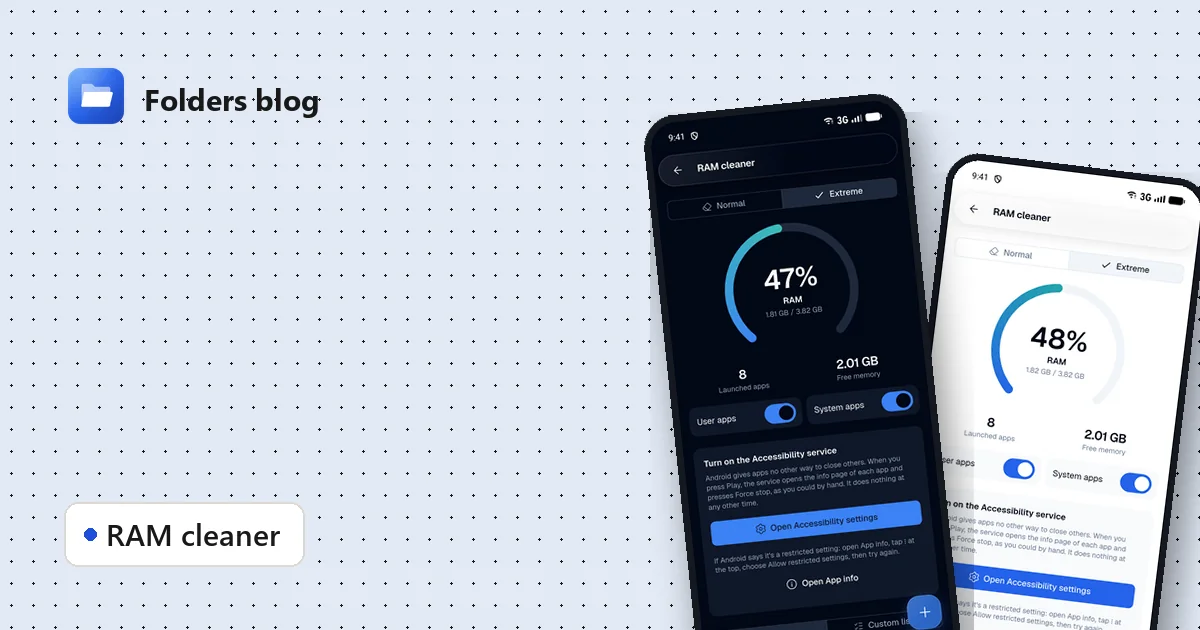
How to free RAM on Android 14 and newer, now that apps can't close other apps
Since Android 14, RAM cleaner apps can't close background apps any more. Here's why, when freeing memory actually helps, and how Folders' Extreme mode still does it, safely.
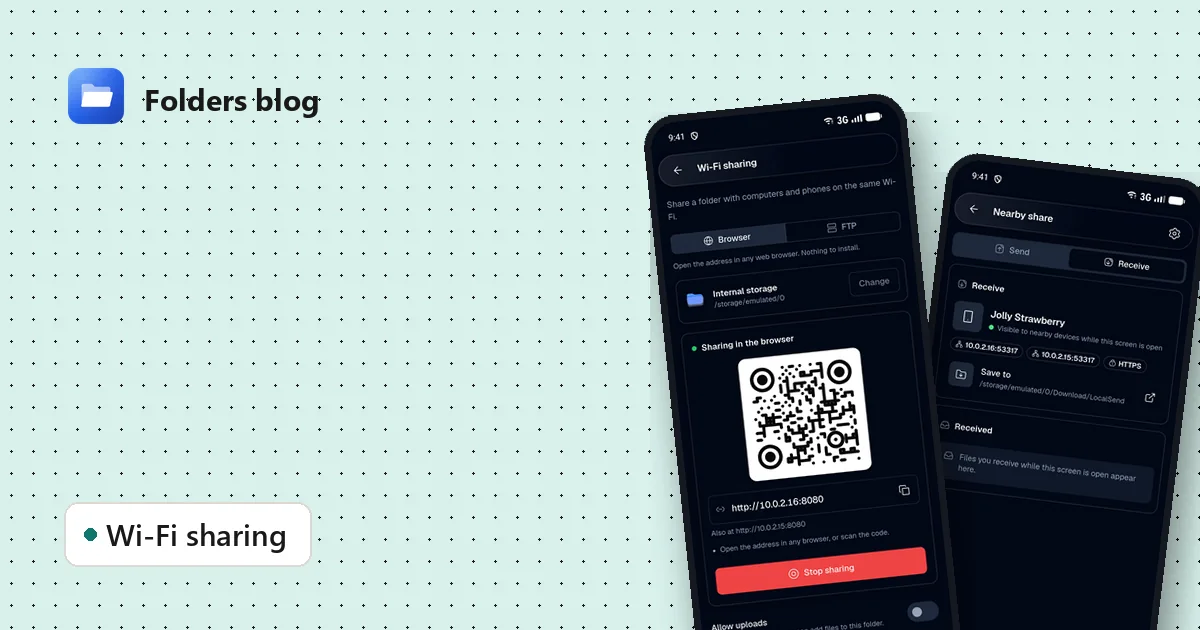
How to move files between your phone and PC over Wi-Fi, without a cable
Two free ways to send photos, videos and documents between Android and a computer on the same Wi-Fi: a browser link with a QR code, or Nearby share that works with LocalSend.