 Folders
How to move files between your phone and PC over Wi-Fi, without a cable
Two free ways to send photos, videos and documents between Android and a computer on the same Wi-Fi: a browser link with a QR code, or Nearby share that works with LocalSend.
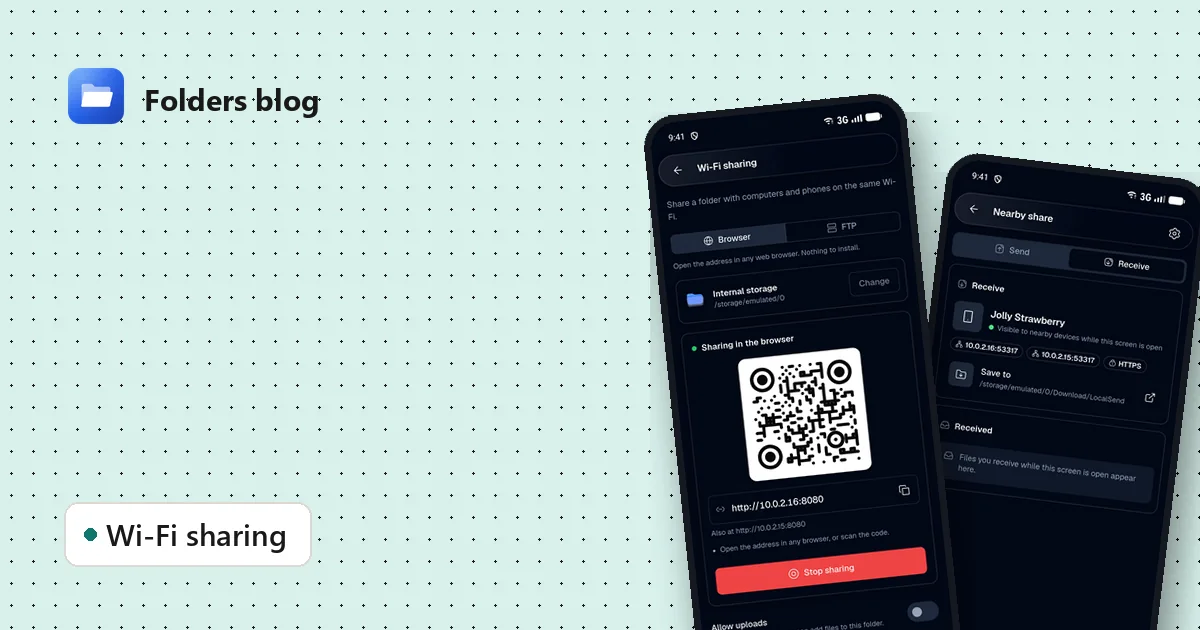
USB cables get lost, phones ask which USB mode you want, and cloud uploads take forever for a few gigabytes of video. If your phone and computer are on the same Wi-Fi, you don’t need any of that.
Folders has two ways to move files over your own network, both free and without an account:
- Wi-Fi sharing turns your phone into a small web and FTP server. Your computer only needs a browser.
- Nearby share sends files straight to another device that runs Folders or the LocalSend app.
Option 1: Wi-Fi sharing (just a browser on the other side)
This is the quickest way when the other device has nothing installed: a work laptop, a friend’s PC, a smart TV browser.
- Open Folders’ side menu and tap Wi-Fi sharing.
- Choose the folder to share. By default it’s Internal storage; tap Change to pick something smaller, like DCIM for your photos.
- Make sure Browser is selected and start sharing. Folders shows an address such as
http://192.168.1.18:8080and a QR code. - On the computer, type that address into any browser, or scan the QR code with another phone’s camera.
- You’ll see your files in the browser. Click to download them.
To send files to the phone, turn on Allow uploads. Anyone with the address can then add files to the shared folder, so switch it off again when you’re done.
While sharing runs, Folders shows a notification with a Stop button, so you can switch apps without losing the connection. Tap the notification to return to the sharing screen, and press Stop sharing when you’re finished.
Prefer FTP?
Switch to the FTP tab and Folders gives you an FTP address instead. FTP apps such as FileZilla can then copy whole folders in one go, which is handy for big photo backups.
Privacy note: sharing only works on your local network, and only while the screen says it’s running. Nothing is uploaded to the internet.
Option 2: Nearby share (works with LocalSend)
Nearby share is better when you move files often between your own devices, or when both sides should be able to send.
- On the phone, open the side menu and tap Nearby share.
- To receive, stay on the Receive tab. Folders gives your device a friendly name (like Jolly Strawberry) and stays visible to nearby devices while this screen is open. Received files go to Download/LocalSend unless you choose another folder.
- To send, switch to the Send tab, pick the files and choose the device to send them to.
Nearby share speaks the same protocol as LocalSend, the open-source app for Windows, Linux, Android and more. So the other device can run either Folders or LocalSend. Between two Windows or Linux computers that both run Folders, it works the same way.
Which one should I use?
| Wi-Fi sharing | Nearby share | |
|---|---|---|
| Needs an app on the other device | No, a browser is enough | Folders or LocalSend |
| Good for | One-off transfers, borrowed computers | Your own devices, frequent transfers |
| Send to the phone | Yes, with Allow uploads | Yes |
| Works without internet | Yes, on the same Wi-Fi | Yes, on the same Wi-Fi |
If the computer can’t connect
- Check that both are on the same Wi-Fi. Guest networks and some office networks keep devices apart; a phone hotspot works as a fallback.
- Use the address exactly as shown, including the
:8080part. - Firewalls: on Windows, allow the connection if a prompt appears for Folders or LocalSend.
- VPNs on either device can block local connections. Pause them for the transfer.
Moving files is one half of the job; finding them is the other. If you’re looking for the photos and videos chat apps saved, see where WhatsApp and Telegram keep your files.
Keep reading
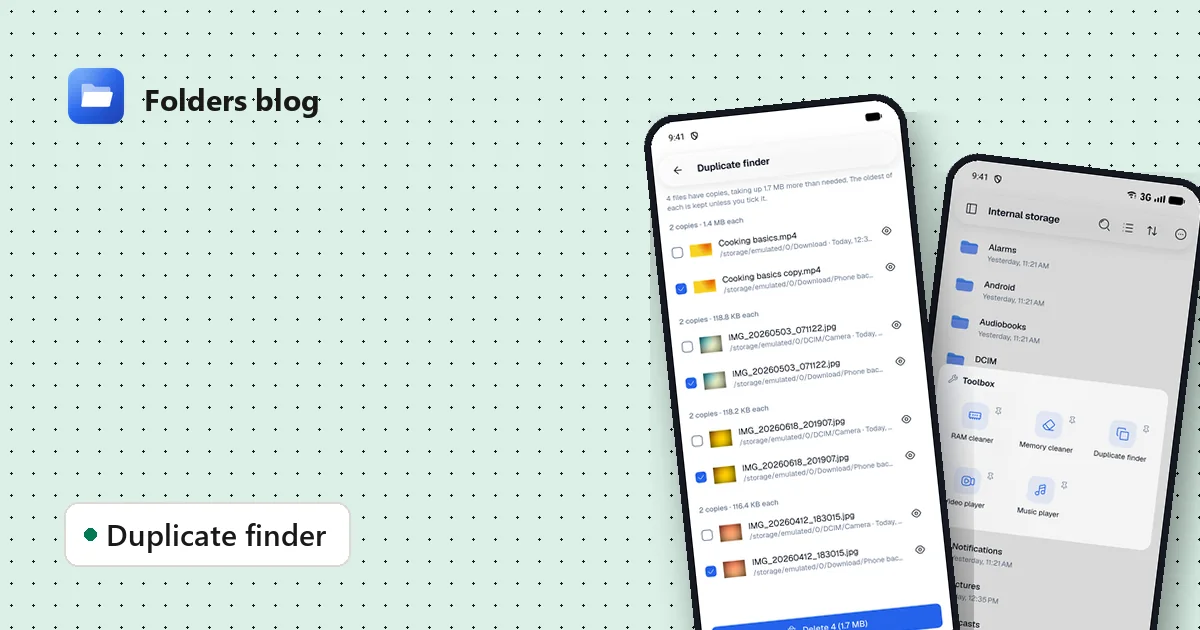
How to find and remove duplicate files safely
Duplicate photos, videos and downloads waste gigabytes. Find true copies by their contents, not their names, keep the oldest of each and delete the rest, on Android, Windows or Linux.
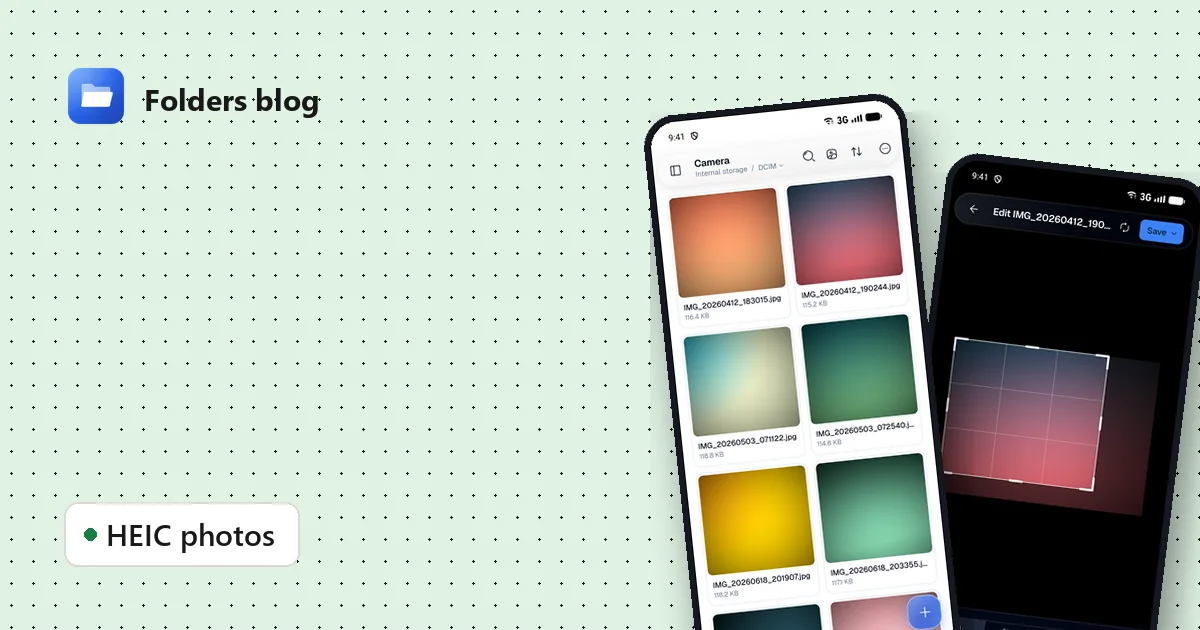
How to open HEIC photos and convert them to JPG, on Android and Windows
HEIC photos from iPhones won't open everywhere. View them on Android and convert one or a whole batch to JPG, PNG, WebP or AVIF, for free, keeping the originals.
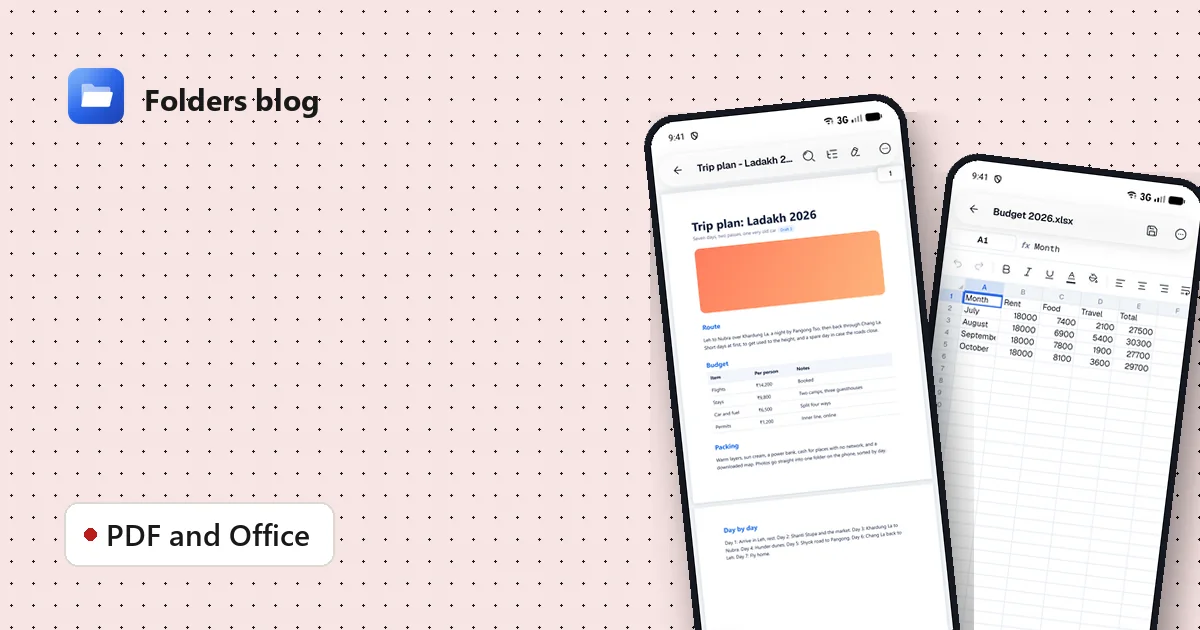
Read and edit PDF, Word and Excel files offline, without an office suite
Open PDF, DOCX, XLSX and PPTX files on Android, Windows or Linux: search, sign PDFs, add notes, edit Word text and spreadsheet cells, present slides, all offline and free.