 Folders
How to open HEIC photos and convert them to JPG, on Android and Windows
HEIC photos from iPhones won't open everywhere. View them on Android and convert one or a whole batch to JPG, PNG, WebP or AVIF, for free, keeping the originals.
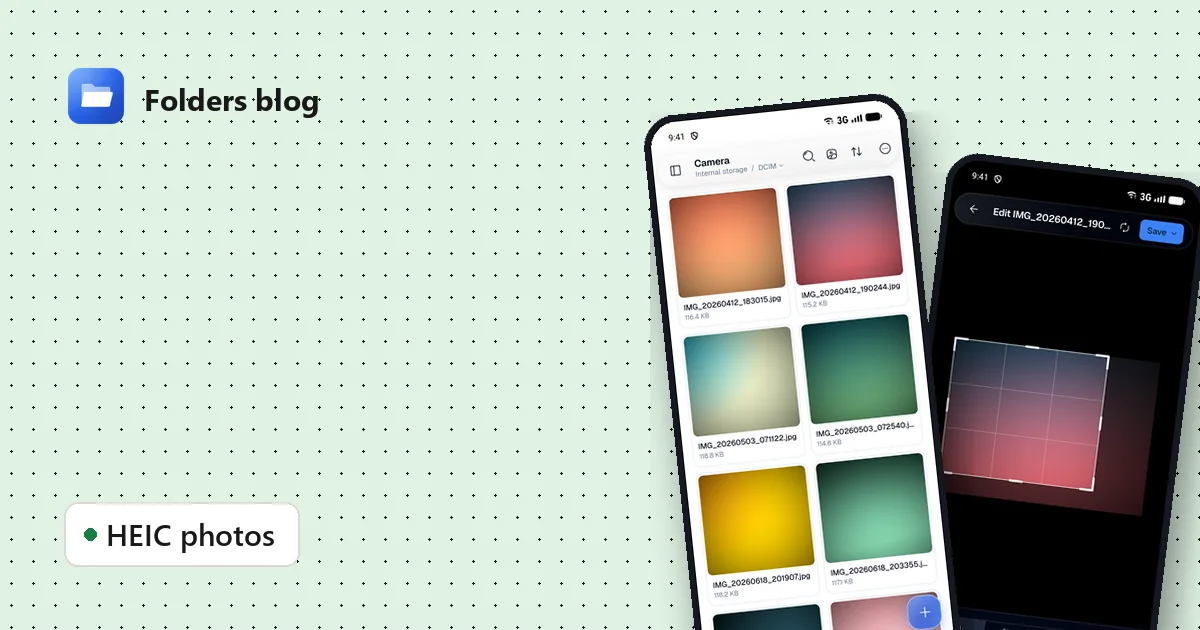
A friend sends you holiday photos from an iPhone and they arrive as IMG_1234.HEIC. Your phone might show them, a website upload form probably won’t, and an older Windows PC may not open them at all. HEIC saves space, but it isn’t understood everywhere yet.
Folders can show HEIC photos and convert them to formats that work everywhere, one photo or a whole batch at a time.
What is HEIC, and why is it a problem?
HEIC (High Efficiency Image Container) stores photos at about half the size of a JPG with the same quality. iPhones use it by default, and some Android phones can too. The catch is support: many websites, older apps and older computers only accept JPG or PNG.
View HEIC photos on Android
Just tap them. Folders shows HEIC, HEIF and AVIF photos in its image viewer and in the gallery view of a folder, alongside JPG, PNG and WebP. Camera RAW files (DNG, CR2, NEF, ARW and others) show the preview the camera saved inside them.
Convert HEIC to JPG
- Select the photos. Long-press one, then tap the others. On a computer, Ctrl-click or Shift-click, or drag a box around them.
- Open the menu and choose Convert to ▸ JPEG (or PNG if you need transparency or lossless quality).
- Folders converts them and saves the new files beside the originals. Your HEIC files are left untouched, so nothing is lost.
Conversions run as a background task: you can keep browsing while a big batch is processed, and see its progress in the notification shade on Android or the task dock on a computer.
Every format you can convert to
| Format | Good for |
|---|---|
| JPEG | Sharing, uploads, anything that “needs a JPG” |
| PNG | Screenshots, graphics, lossless copies |
| WebP | Websites: smaller than JPG, keeps transparency |
| AVIF | The smallest files, for modern browsers and apps |
| HEIC | Saving space on your own devices |
| TIFF, BMP, GIF, ICO, TGA | Older programs, icons and special uses |
You can convert from HEIC, AVIF, WebP, JPG, PNG, TIFF, BMP, GIF, ICO, TGA, PSD, EXR and a few more. SVG drawings aren’t converted, since they’re vector drawings rather than photos.
Convert on Windows and Linux
The same Convert to ▸ menu is there when you right-click photos on a computer. For WebP, AVIF and HEIC, Folders uses FFmpeg; the first time you need it, Folders downloads it for you, and after that conversions work offline.
Resize a batch of photos
Need smaller files for email or a form with an upload limit? Select the photos and choose Resize…. Pick the new size and Folders makes resized copies, again leaving the originals alone.
Edit and copy text from photos
While a photo is open, you can also:
- Crop and rotate it with a frame you can drag from any edge or corner, and add filters;
- copy the text out of it, which is handy for a receipt, a sign or a page of notes.
Questions people ask
Will converting lose quality? Converting to PNG keeps every pixel. JPEG, WebP and AVIF compress the image, but at normal settings the difference is hard to see.
Can I convert a whole folder? Yes: open the folder, select all (Ctrl+A on a computer) and choose Convert to.
Does it work without internet? On Android, yes, always. On a computer, only the first FFmpeg download needs the internet.
If the photos came through a chat app, you may first need to find them: here’s where WhatsApp and Telegram save your files.
Keep reading
How to find and remove duplicate files safely
Duplicate photos, videos and downloads waste gigabytes. Find true copies by their contents, not their names, keep the oldest of each and delete the rest, on Android, Windows or Linux.
How to move files between your phone and PC over Wi-Fi, without a cable
Two free ways to send photos, videos and documents between Android and a computer on the same Wi-Fi: a browser link with a QR code, or Nearby share that works with LocalSend.
Read and edit PDF, Word and Excel files offline, without an office suite
Open PDF, DOCX, XLSX and PPTX files on Android, Windows or Linux: search, sign PDFs, add notes, edit Word text and spreadsheet cells, present slides, all offline and free.