 Folders
Read and edit PDF, Word and Excel files offline, without an office suite
Open PDF, DOCX, XLSX and PPTX files on Android, Windows or Linux: search, sign PDFs, add notes, edit Word text and spreadsheet cells, present slides, all offline and free.
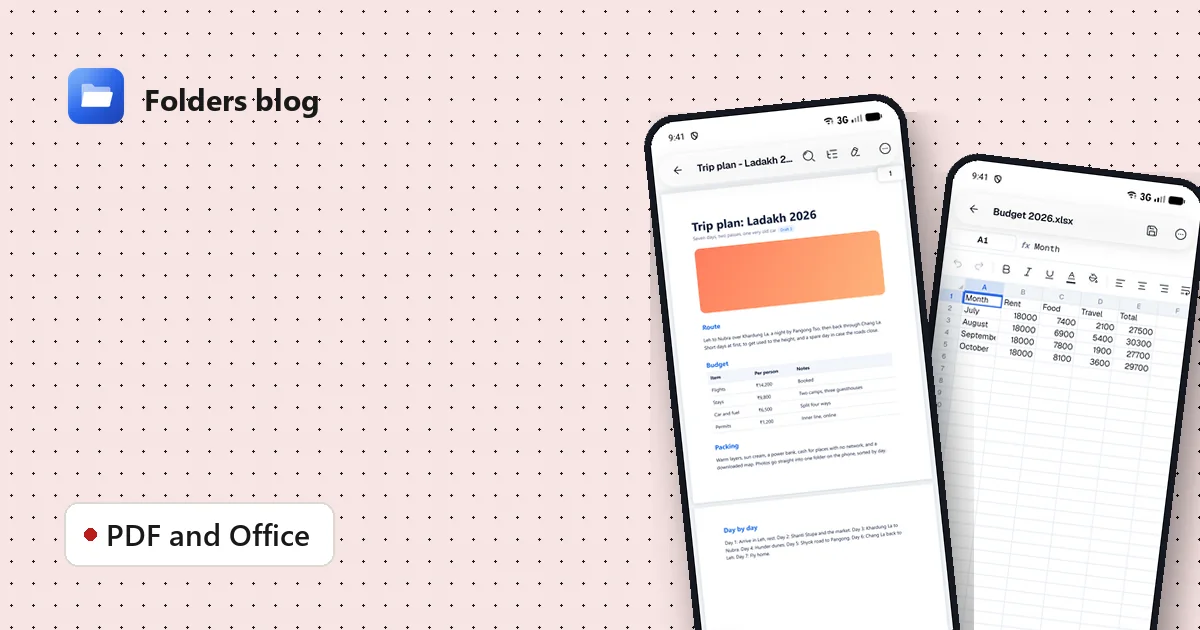
A contract arrives as a PDF that needs a signature. A colleague sends a spreadsheet with one number to fix. Your phone suggests installing an office suite that wants an account, a subscription or a pile of permissions.
Folders opens documents in its own viewers, works offline, and lets you make the small changes that come up every day.
PDFs: read, search, mark up, sign
Tap a PDF and it opens in Folders’ PDF viewer:
- Search the whole document.
- Outline, bookmarks and pages in one panel, to jump to a chapter or a page thumbnail; or use Go to page…
- Continuous scroll or page by page, zoom, and night mode for reading in the dark.
- Add notes on a page, and edit them later.
- Sign: choose Add signature, draw your signature with your finger or mouse, and place it where it says Sign here.
- Organise pages: reorder or remove pages, and Insert PDF… to add another PDF at the beginning, at the end or after the current page.
- Password-protected PDFs open once you enter the password, and Remove password takes it off, for documents you’re allowed to unlock.
- Save, Save as copy or Share when you’re done.
Word documents: read and edit
Word files (DOCX, DOC, DOCM and templates) open in a clean reading view, and OpenDocument text (ODT) and rich text (RTF) open too. The Word viewer has:
- Find to search the document, and an Outline of its headings;
- Print layout to see the pages as they’d print, or a flowing view that fits your screen;
- Dark page for reading at night, and Copy text;
- Edit to change the text, then Save, Save as copy or Save as .docx.
Spreadsheets: change a cell and save
Excel files (XLSX, XLS and macro-enabled XLSM), OpenDocument spreadsheets (ODS) and CSV or TSV files open as real grids, with their sheets and formulas. Tap a cell to see and change its contents, then save. It’s ideal for fixing a figure or checking a total on the go.
Presentations: view and present
PowerPoint (PPTX, PPT) and OpenDocument (ODP) slides open with:
- Present to show the slides full screen, with Next and Previous;
- Speaker notes and Go to slide…;
- slide actions to duplicate, delete or move a slide earlier or later, and Save.
Make new documents
Need a fresh file? The + button in a folder (next to New folder on a computer) creates a blank text file, Word document, spreadsheet, presentation and more. It opens in its editor straight away, and only gets a name and a place in the folder when you first save it, so you’re never left with empty “Untitled” files.
Everything works offline
Nothing is uploaded to open, edit or sign a document. Your files stay on your device, and Folders needs no account. That matters for contracts, payslips, medical papers and anything else you’d rather not send to a cloud service just to read.
Which document types open?
| Kind | Formats |
|---|---|
| Word and text | DOCX, DOCM, DOTX, DOTM, DOC, DOT, WPS, RTF, ODT, OTT, FODT |
| Spreadsheets | XLSX, XLSM, XLTX, XLTM, XLS, XLT, ODS, OTS, CSV, TSV |
| Presentations | PPTX, PPTM, PPSX, POTX, PPSM, PPT, PPS, POT, ODP, OTP |
| E-books | EPUB, MOBI, AZW, AZW3, FB2, PRC, and comics in CBZ, CBR, CB7, CBT |
Questions people ask
Is it a full office suite? No. It’s built for reading and quick changes. For writing a long report or building a complex spreadsheet, a full office app is still the right tool.
Do the documents look exactly like in Microsoft Office? Most documents look very close. Complex layouts with unusual fonts or advanced features can differ a little.
Can I open a document from an email or chat? Yes, choose Open with → Folders. Documents saved by WhatsApp and Telegram are also gathered in Folders’ social folders; see where those apps keep your files.
Does this work on Windows and Linux? Yes, the same viewers run on computers.
Keep reading
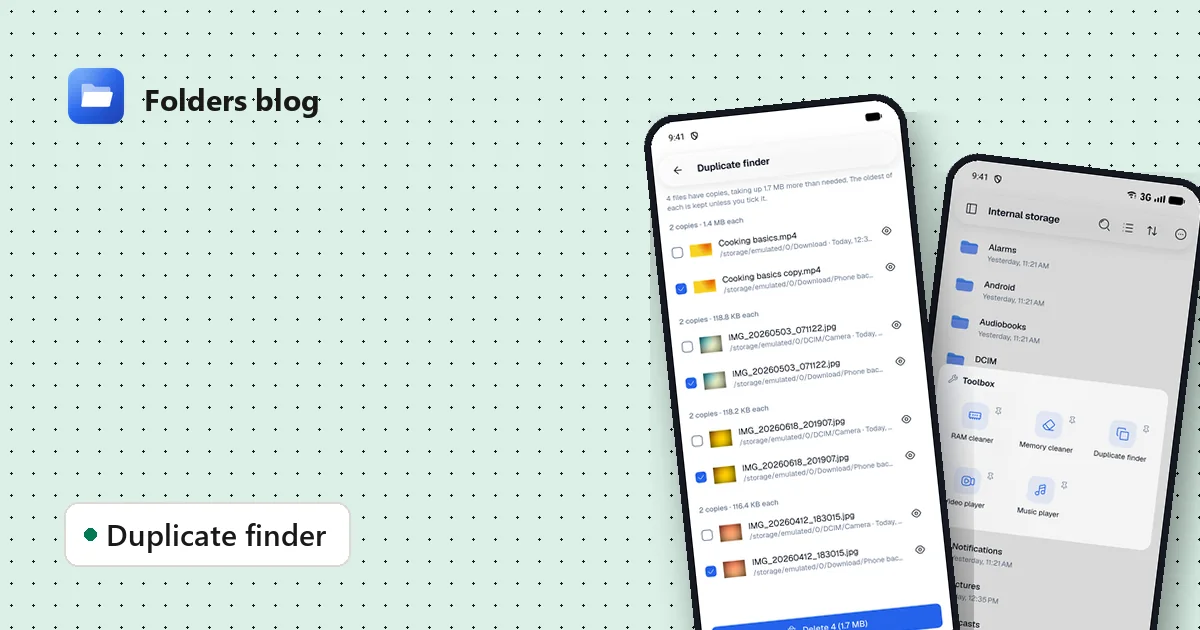
How to find and remove duplicate files safely
Duplicate photos, videos and downloads waste gigabytes. Find true copies by their contents, not their names, keep the oldest of each and delete the rest, on Android, Windows or Linux.
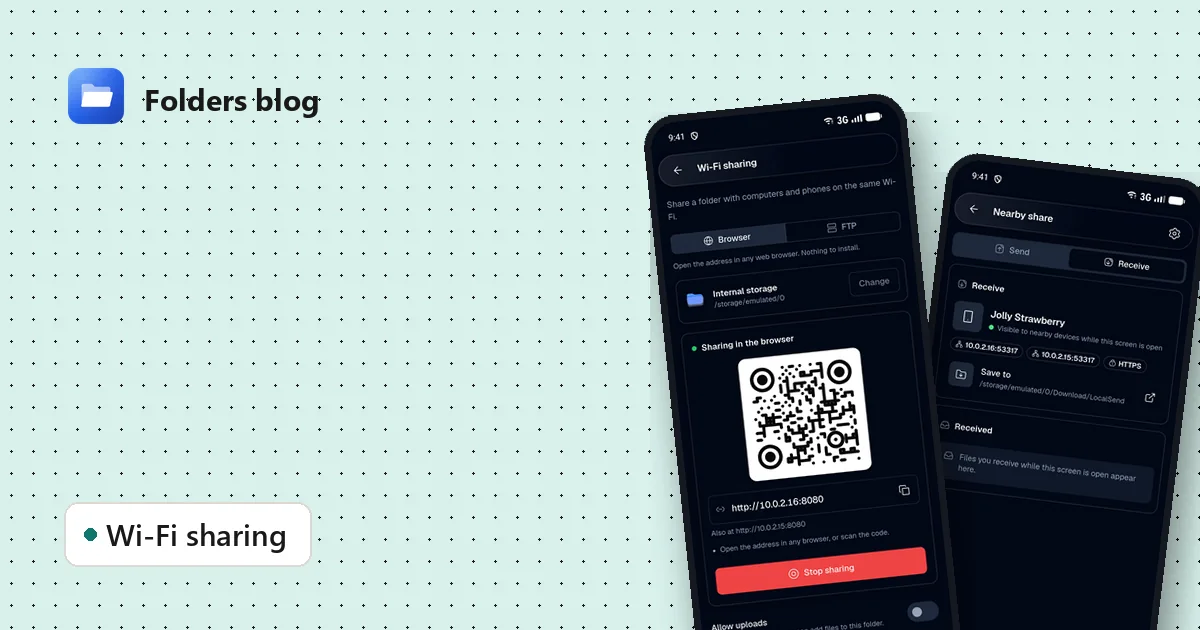
How to move files between your phone and PC over Wi-Fi, without a cable
Two free ways to send photos, videos and documents between Android and a computer on the same Wi-Fi: a browser link with a QR code, or Nearby share that works with LocalSend.
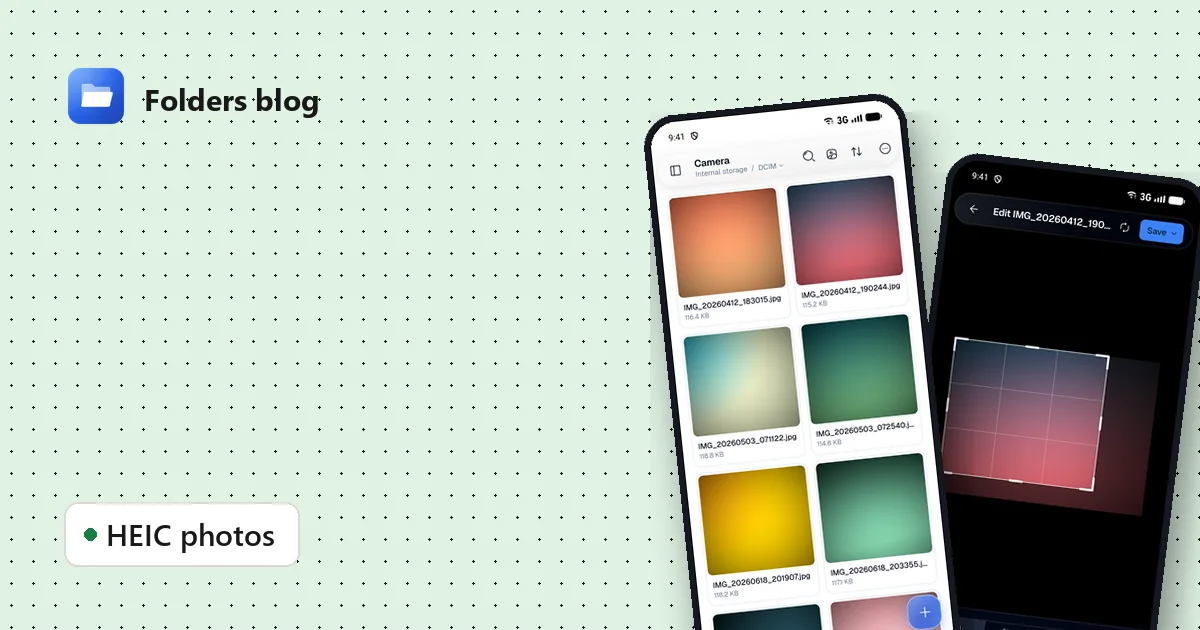
How to open HEIC photos and convert them to JPG, on Android and Windows
HEIC photos from iPhones won't open everywhere. View them on Android and convert one or a whole batch to JPG, PNG, WebP or AVIF, for free, keeping the originals.