 Folders
How to clean junk files on Android without deleting anything you need
Free up storage by clearing thumbnail caches, leftovers and other junk, with a cleaner that only ticks what's certainly safe to delete and shows you everything else first.
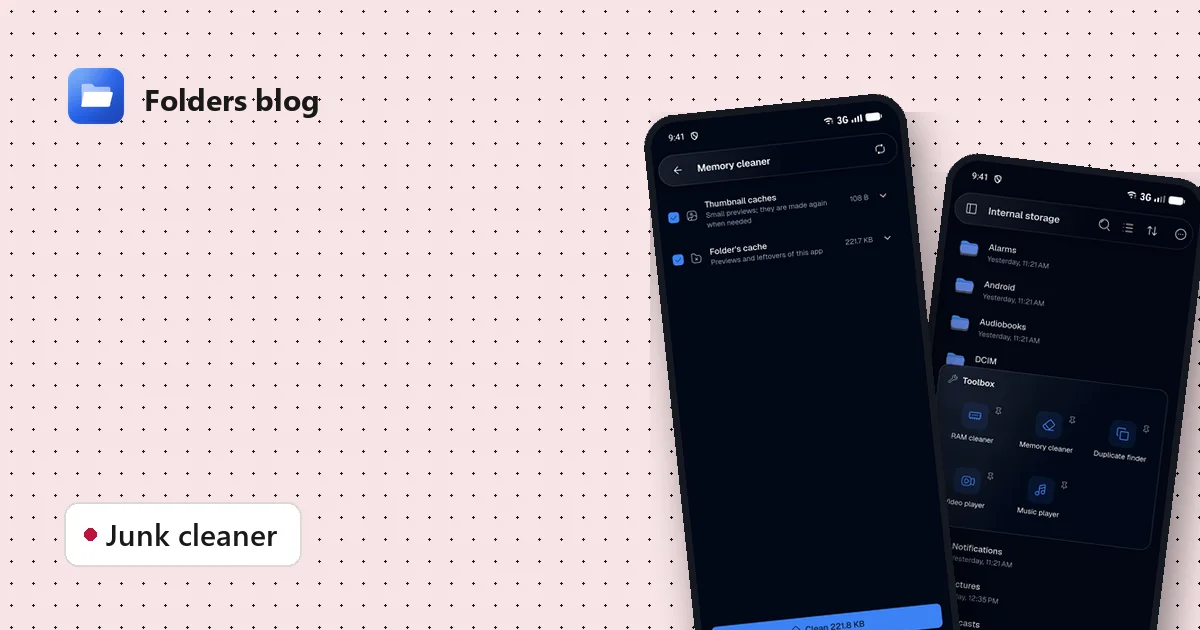
“Storage almost full.” Most phone cleaners answer that warning with a big button and a bigger number, then delete things you wanted, like downloads, voice notes or app data, along with the junk. The space comes back; so does the regret.
A good cleaner should do the opposite: delete only what is certainly safe, and show you the rest so you can decide.
What counts as junk?
Junk is data your phone can do without, because nothing needs it or it can be made again. Folders sorts what it finds into groups, and only the first three are ticked to begin with:
| Group | What it is | Ticked at first |
|---|---|---|
| Temporary files | Left behind by apps; nothing needs them | Yes |
| Thumbnail caches | Small previews of photos and videos; made again when needed | Yes |
| Folders’ cache | Previews and leftovers of Folders itself | Yes |
| Log files | Records apps keep of what they did | No |
| Empty folders | Folders with nothing in them | No |
| App installers | APK files; check you no longer need them | No |
On a computer you’ll also see app caches and the trash, also unticked: caches make apps slower for a while after they’re cleared, and emptying the trash is for good.
What isn’t junk: your downloads, documents, photos, videos and voice notes, even old ones. Those are your files, and only you can say they can go.
Clean junk with Folders
- Open the side menu, tap Toolbox, then Memory cleaner.
- Folders scans and lists what it found, group by group, with the size of each and a short explanation, like Thumbnail caches: small previews; they are made again when needed.
- Only what’s certainly safe is ticked at first. Everything else is listed but left unticked, so you decide.
- Check the list, tick or untick anything, and press Clean. The button shows how much space you’ll get back.
That’s it. No fake “phone health” score, no countdown, no deep clean that wipes your data.
Why some app caches aren’t listed
Since Android 11, each app’s private folder (inside Android/data) is off-limits to other apps, cleaners included. That’s a privacy protection, and it means no app from the store can clear another app’s private cache any more.
To clear one app’s private cache, use Android itself: Settings → Apps → the app → Storage → Clear cache. Clear cache is safe; Clear storage (or Clear data) deletes the app’s data and sign-in, so think twice before using that one.
Folders cleans what it can reach in your phone’s shared storage, and it’s honest about it.
Bigger wins than junk
Junk usually adds up to megabytes or a few hundred megabytes. If you need gigabytes back, look at these:
- Duplicates. The same photos and videos saved from chats and backups. The duplicate finder finds exact copies and keeps the oldest.
- Chat media. WhatsApp and Telegram keep every photo, video and voice note you receive. Folders’ social folders show them all in one place; see where those apps keep your files.
- Big old videos. Open your Movies or DCIM folder in Folders and sort by size to find the largest files first.
- Downloads. Old APKs, ZIPs you’ve already extracted and PDFs you’ve read.
On Windows and Linux
The memory cleaner runs on computers too, but only in folders that are meant for temporary files on each system, so it never wanders into your documents.
Questions people ask
Will cleaning make my phone faster? If storage is nearly full, yes, freeing space helps the whole phone. If storage is fine, cleaning junk won’t change speed much. For a sluggish phone, see how to free RAM on Android 14 and newer.
Will I lose photos? Not from the junk cleaner. Photos aren’t junk and are never ticked.
How often should I clean? Whenever storage gets tight. Thumbnails come back as you browse, so there’s no need to clean daily.
Keep reading
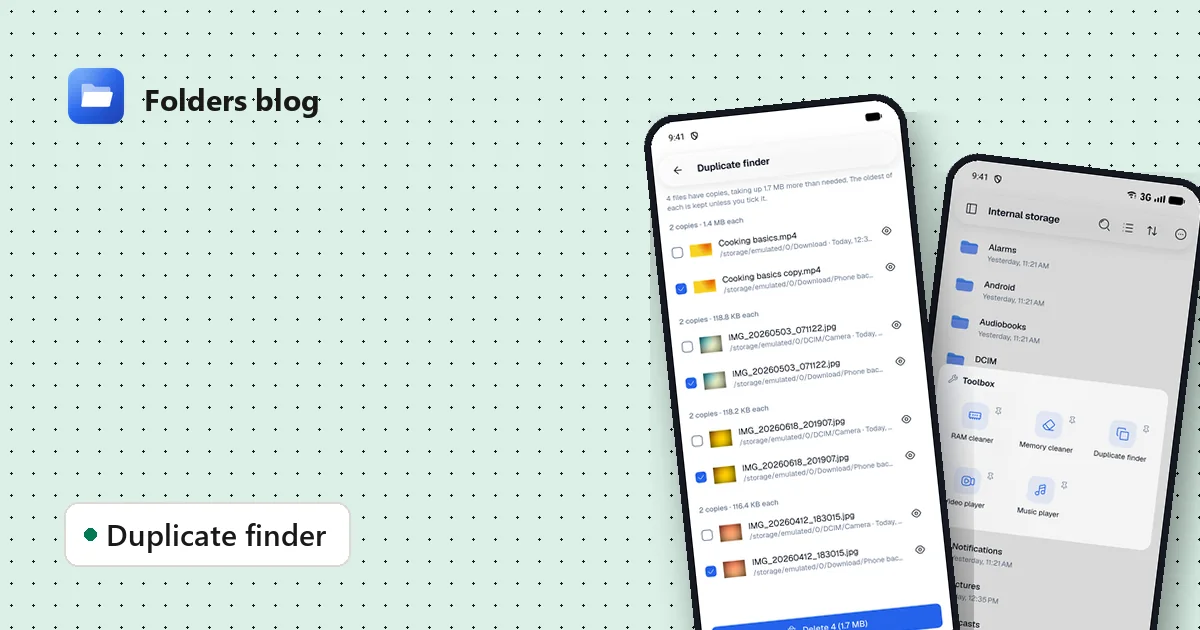
How to find and remove duplicate files safely
Duplicate photos, videos and downloads waste gigabytes. Find true copies by their contents, not their names, keep the oldest of each and delete the rest, on Android, Windows or Linux.
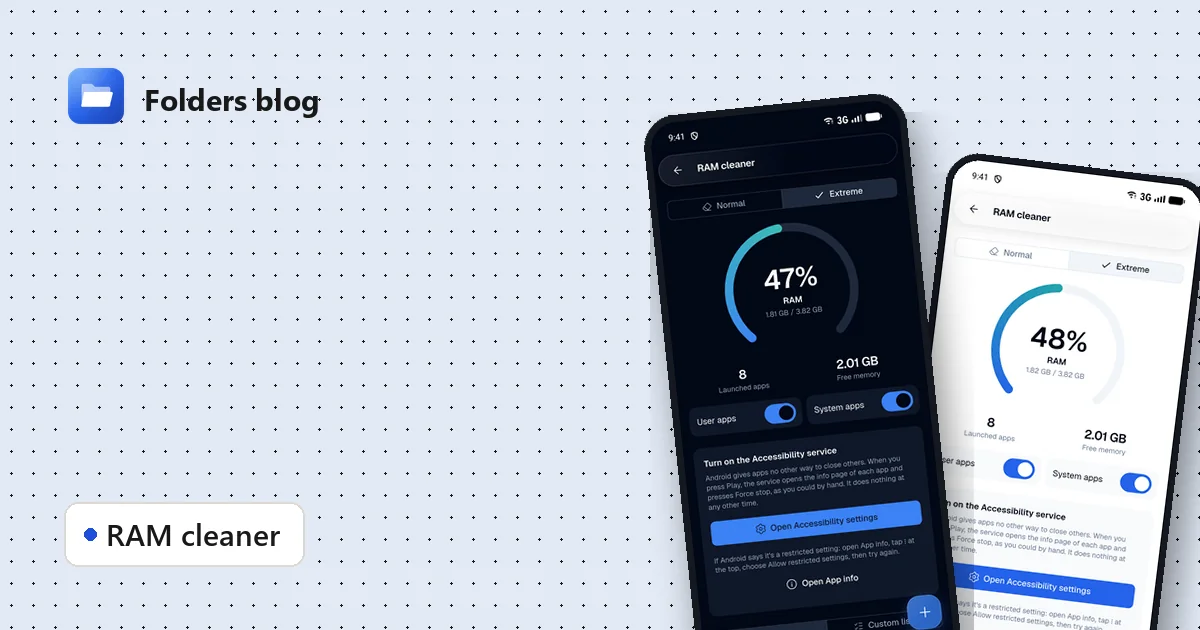
How to free RAM on Android 14 and newer, now that apps can't close other apps
Since Android 14, RAM cleaner apps can't close background apps any more. Here's why, when freeing memory actually helps, and how Folders' Extreme mode still does it, safely.
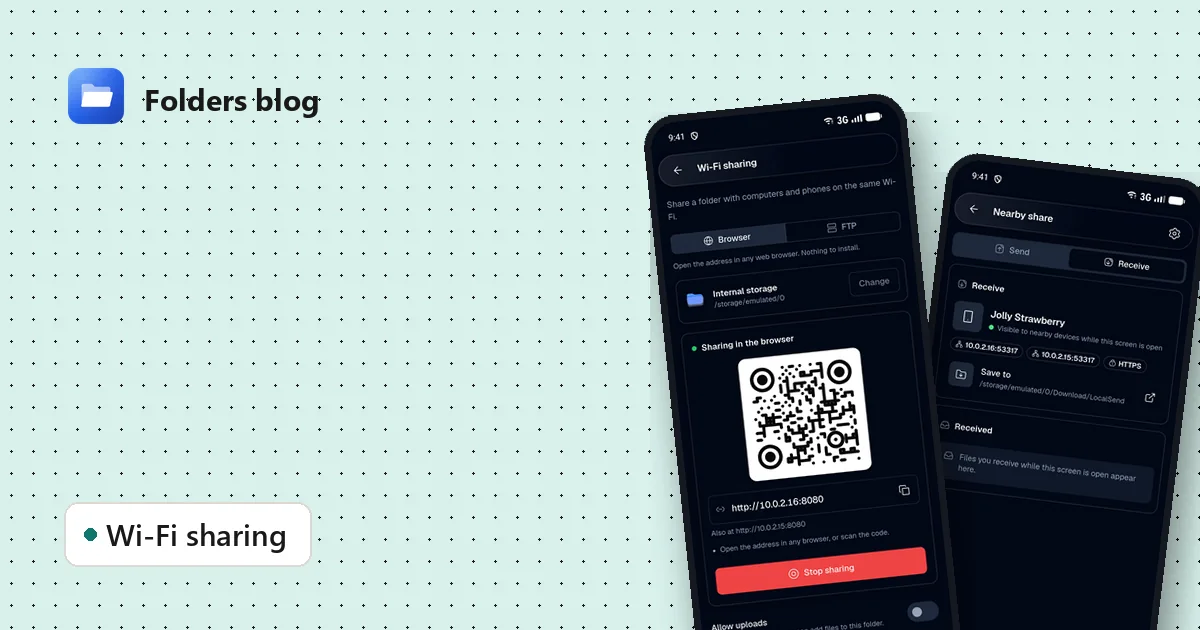
How to move files between your phone and PC over Wi-Fi, without a cable
Two free ways to send photos, videos and documents between Android and a computer on the same Wi-Fi: a browser link with a QR code, or Nearby share that works with LocalSend.