 Folders
How to open RAR, 7z and ZIP files on your phone
Open ZIP, RAR, 7z, TAR, GZ and ISO files on Android or a PC, look inside without extracting, open a single file, or extract everything, for free and without ads.
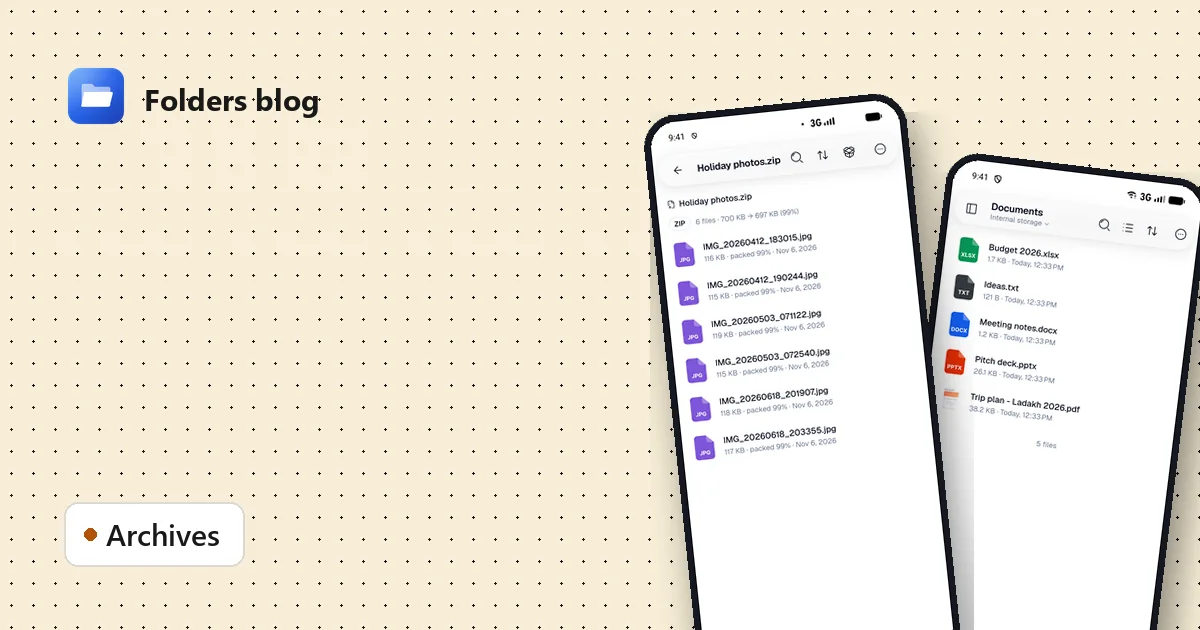
A download finishes and you’re left with Holiday photos.zip, project.rar or backup.7z. Many phones can’t open RAR or 7z at all, and the apps that can are often full of ads or ask you to extract everything before you can see what’s inside.
In Folders, an archive opens like a folder. Tap it and you see what’s inside, with sizes and dates, before anything is unpacked.
Open an archive
- Find the file (it’s usually in Download). You can type
.zipor.rarinto the search box at the top of a folder. - Tap it. Folders shows the archive’s contents and a summary at the top, for example ZIP · 6 files · 700 KB → 697 KB (99%): how many files are inside, how big they are unpacked, and how much the archive saved.
- Tap any file inside to open it straight away: a photo, a PDF, a video, even a 3D model. Folders unpacks just that one file for you.
Big archive? Use Search in archive to find a file by name, and Sort to change the order of the list. Archive info shows the details of the archive itself.
Extract files
- Extract all unpacks the whole archive into a folder of your choice.
- To extract only some files, select them and choose Extract selected.
Folders shows the progress while it extracts, and you can cancel at any time.
Which archive types work?
| Type | Extensions |
|---|---|
| ZIP family | ZIP, JAR, WAR, AAR, XAPK, APKS |
| RAR | RAR |
| 7-Zip | 7Z |
| Tar and compressed tar | TAR, GZ, TGZ, BZ2, TBZ, TBZ2, XZ, TXZ |
| Disk images | ISO |
| Comic archives | CBZ, CBR, CB7, CBT (open in the comic reader) |
Comic book archives are really ZIP, RAR or 7z files with pictures inside, so Folders opens them as comics, page by page, instead of as a list of files.
Make a ZIP
Going the other way is just as easy. Select files or folders, open the menu and choose Compress to ZIP. That’s the format every phone and computer can open, so it’s the best choice for sending a bundle of files to someone.
(RAR is a closed format: you can open RAR files in Folders, but like most apps, Folders makes ZIP files rather than RAR.)
On Windows and Linux
Folders works the same way on a computer: double-click an archive to browse it, open a single file, or extract it. If you’ve been installing a separate archiver just to peek inside a RAR or 7z, you may not need it any more.
Questions people ask
Why can’t I open an APK file? An APK is an app installer, so Folders hands it to Android’s installer instead of opening it as an archive. Split-app bundles (.xapk, .apks) are archives, though, and you can look inside them.
Do I need to extract a file to view it? No. Tapping a file inside the archive opens it directly.
Where do extracted files go? Into the folder you choose when you extract.
Once you’ve unpacked a big download, you might end up with the same photos twice. The duplicate finder finds those copies for you.
Keep reading
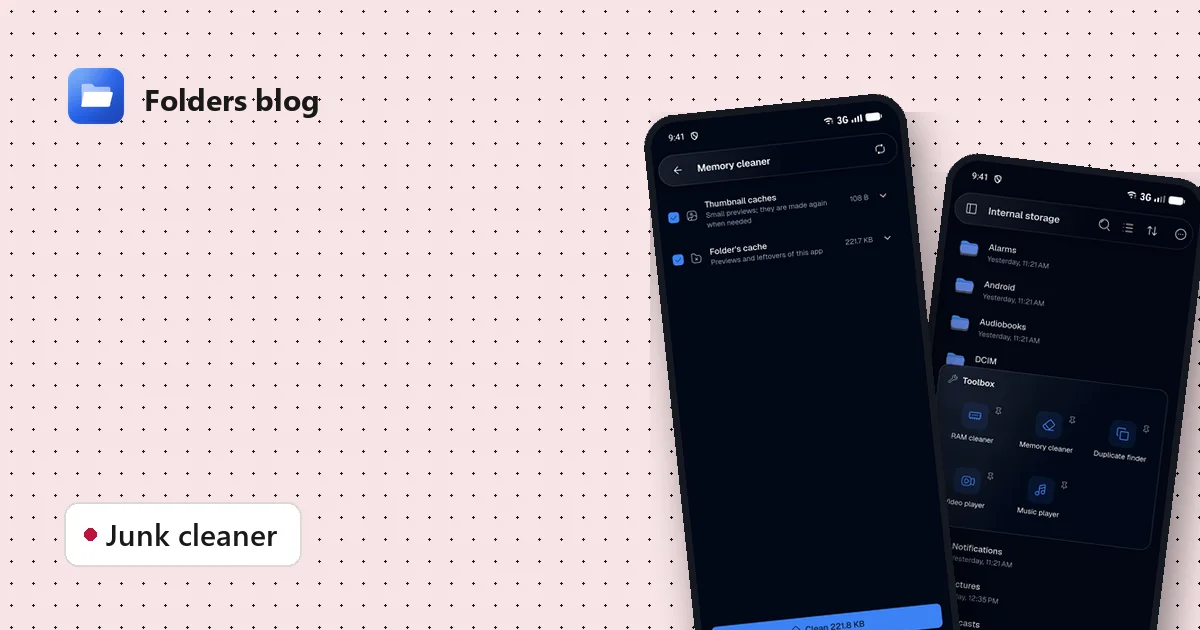
How to clean junk files on Android without deleting anything you need
Free up storage by clearing thumbnail caches, leftovers and other junk, with a cleaner that only ticks what's certainly safe to delete and shows you everything else first.
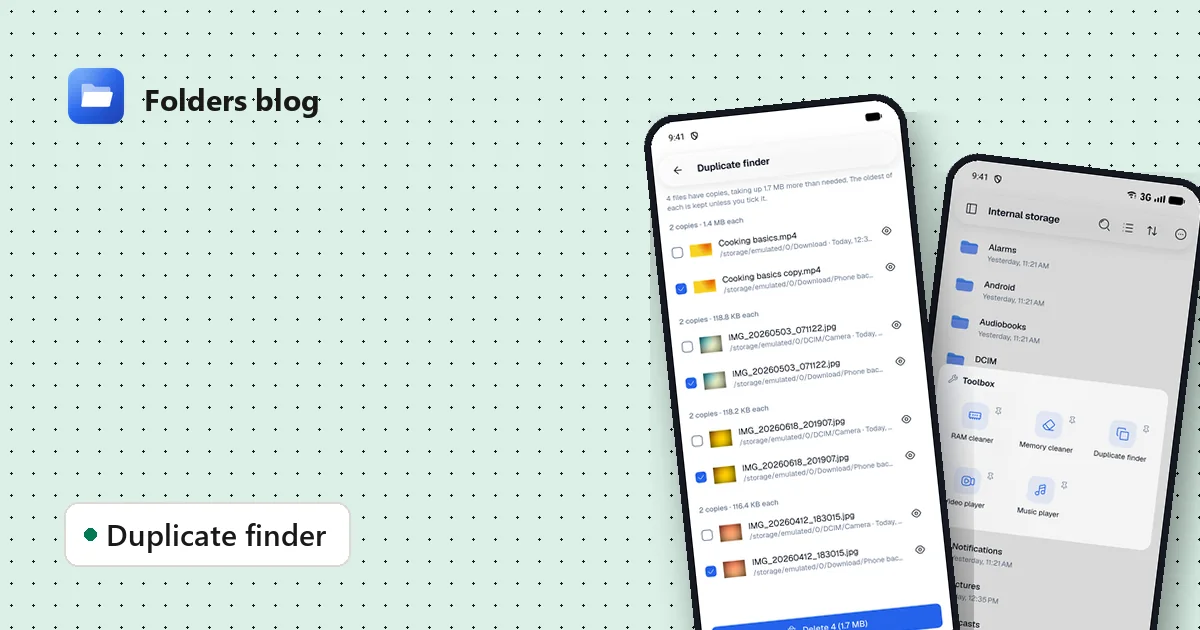
How to find and remove duplicate files safely
Duplicate photos, videos and downloads waste gigabytes. Find true copies by their contents, not their names, keep the oldest of each and delete the rest, on Android, Windows or Linux.
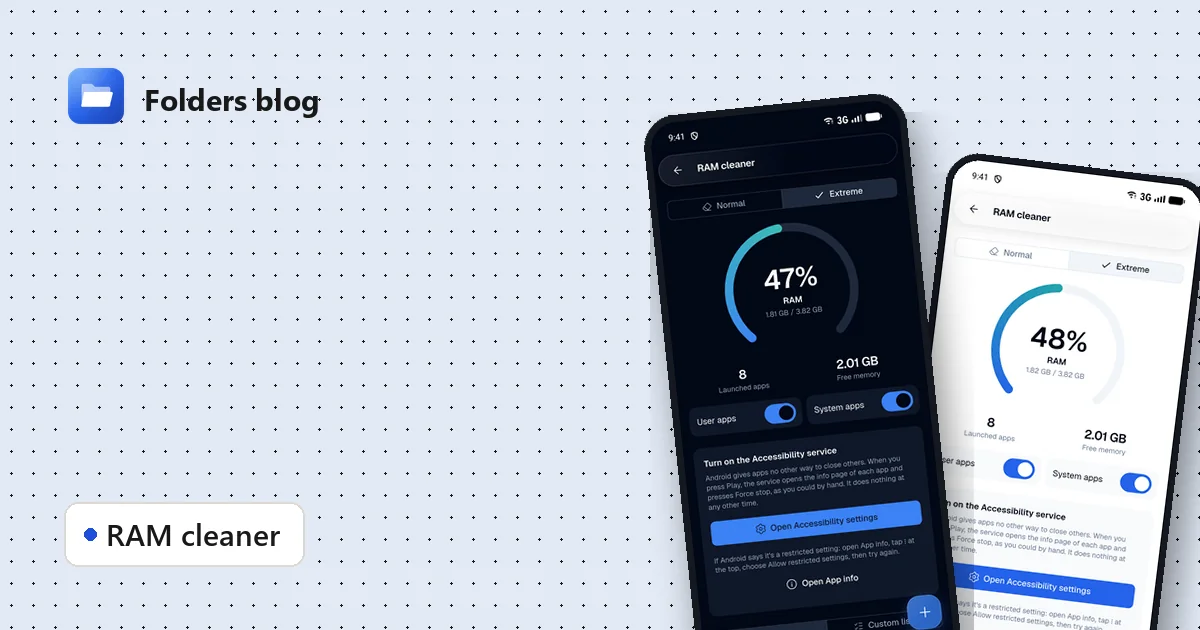
How to free RAM on Android 14 and newer, now that apps can't close other apps
Since Android 14, RAM cleaner apps can't close background apps any more. Here's why, when freeing memory actually helps, and how Folders' Extreme mode still does it, safely.