 Folders
How to open .TSV files (tab-separated values) on Android, Windows and Linux
What .tsv, .tab and .psv files are and how to open, read and edit TSV, TAB and PSV data files for free on Android, Windows and Linux, as a clear table.
 Satyam Mishra4 min read
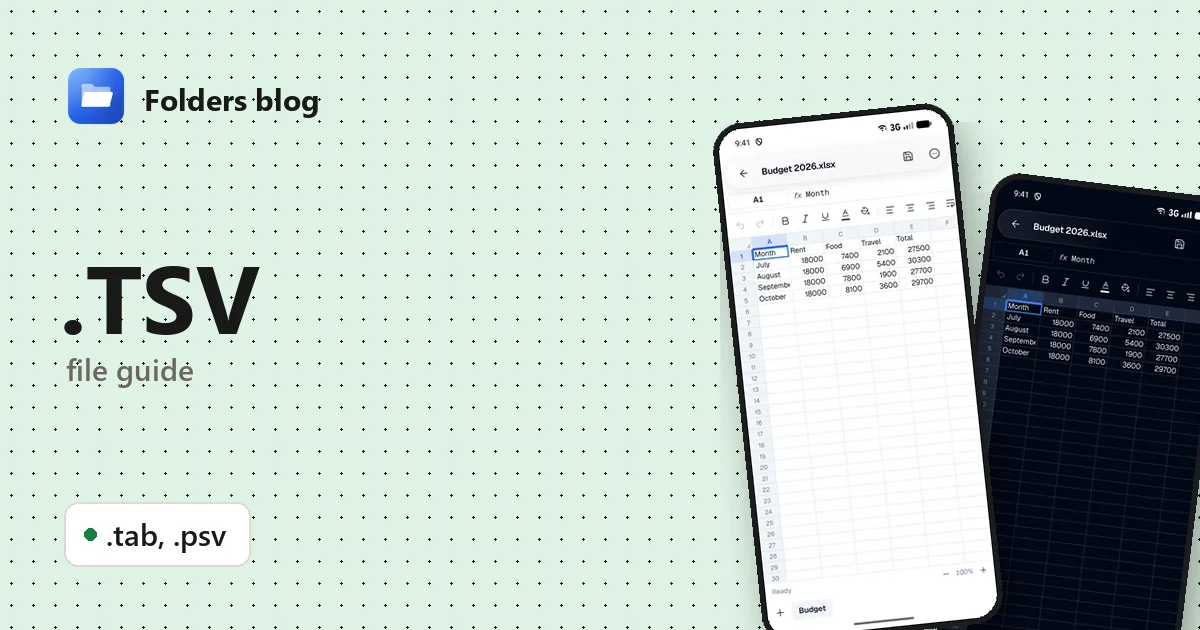
A .tsv file usually comes out of something technical: a database export, a research tool, an analytics dashboard’s “download as TSV” button. It’s table data in its rawest form. Phones rarely have anything that opens it, and Windows just asks which app you’d like to use.
Folders opens TSV files, along with their cousins .tab and .psv, in its spreadsheet editor on Android, Windows and Linux. It’s free, works offline, and lets you edit the data and save it back in the same format.
What is a .tsv file?
TSV means tab-separated values. Like CSV, it’s plain text with one row per line, but the columns are split by the tab character instead of a comma. It even has its own registered media type, text/tab-separated-values.
The big advantage is that tabs almost never appear inside real data. Addresses, prices with thousands separators and sentences full of commas can sit in a TSV without any quoting, which keeps files simple to read and write. That’s why TSV is popular for scientific data (bioinformatics tools use tab-delimited files everywhere), translation tables and log exports. It’s also what your clipboard holds when you copy a block of cells from Excel or Google Sheets.
The strict version of the format has no quoting at all, so a value can’t contain a tab or a line break. Many programs quote such values anyway, CSV-style, and that’s a common source of confusion.
| Extension | What it is |
|---|---|
| .tsv | Tab-separated values, the usual name |
| .tab | Also tab-separated text, used by some programs for their exports. MapInfo, a mapping program, uses .tab for something different (see the problems below) |
| .psv | Pipe-separated values: columns split by the vertical bar (the pipe character), chosen for data full of commas and tabs, often from older business or database systems |
How to open a .tsv file with Folders
Android
- Install Folders from the download section (Android 7.0 and up) and allow file access.
- Go to the folder that holds the file, or type part of its name in the search box.
- Tap it. The data appears in columns, ready to scroll.
- Got it in another app? Choose Open with → Folders there.
Windows and Linux
- Install Folders and open the folder with your data.
- Open the .tsv, .tab or .psv file, and it loads in the spreadsheet editor.
- On Windows, File Explorer’s right-click menu gets the same option: Open with → Folders, added by the installer.
What you can do with it in Folders
- Set the delimiter. Files don’t always use the separator their name suggests. If the columns don’t split, open Delimiter and choose tab, pipe, comma or semicolon.
- First row is header. Switch it on when the first line holds column names, off when it’s data.
- Edit and search. Change any cell, use Find & replace with match case, and Go to a cell or range in long files. Undo and redo cover mistakes.
- Format for reading. Bold, alignment, fill colour and number formats help while you look through the data (they aren’t stored in a plain-text file).
- Save in the same format. Save writes tab- or pipe-separated text again, so the file still works in the tool it came from.
- Save as .xlsx when you want a real workbook to keep formatting or share with Excel users.
Other ways to open .tsv files
- Excel: Data → From Text/CSV, then pick Tab, or type
|as a custom delimiter for PSV. - LibreOffice Calc: its Text Import dialog lets you tick Tab, or enter
|under Other. - Google Sheets: File → Import, then choose Tab or a custom separator.
- A Linux terminal:
column -t -s $'\t' file.tsvlines the columns up for a quick look.
Problems opening a .tsv file?
- The columns don’t split. Some editors silently turn tabs into spaces, so the file no longer has tabs at all. Check it in a text editor; if that’s what happened, ask for a fresh export.
- Rows break in odd places. A value contained a line break without quotes, which strict TSV can’t express. Re-export with quoting, or as CSV.
- The .tab file makes no sense. If it came with .dat, .map and .id files of the same name, it’s a MapInfo table: a description of a map layer, not a data table. Open the set in a GIS program such as QGIS (free).
- Accented letters are garbled. The file’s text encoding doesn’t match what the program assumed. Re-export as UTF-8 if you can.
Questions people ask
How do I open a TSV file in Excel? Use Data → From Text/CSV, choose the file, and set the delimiter to Tab. Double-clicking may work too, but importing lets you control how each column is read.
How do I convert TSV to CSV? Open it in LibreOffice Calc or Excel and save as CSV. If you need a workbook rather than CSV, Folders can Save as .xlsx directly.
What’s the difference between TSV and CSV? Only the separator: tabs instead of commas. TSV avoids most quoting problems because data rarely contains tabs; CSV is more widely recognised by everyday software.
Can I open a PSV file on Android? Yes. Folders opens .psv files as a table; if the columns don’t split, set Delimiter to pipe.
Related guides: how to open .CSV files and how to open .XLSX files. Or see all 382 file types Folders opens.
Keep reading
How to open .CSV files (comma-separated values) on Android, Windows and Linux
What a .csv file is and how to open, read and edit CSV files for free on Android, Windows and Linux, as a table with the right delimiter, no Excel needed.
How to open .ODS files (OpenDocument spreadsheets) on Android, Windows and Linux
What an .ods file is and how to open, read and edit ODS and OTS spreadsheets from LibreOffice for free on Android, Windows and Linux, and save them as .xlsx.
How to open .XLS files (Excel 97-2003 workbooks) on Android, Windows and Linux
What an .xls file is and how to open, read and edit old XLS and XLT Excel workbooks for free on Android, Windows and Linux, with no Microsoft Excel needed.