 Folders
How to open Markdown and code files on Android, with preview and highlighting
Read README.md files as formatted pages, view Python, JavaScript, Kotlin and 127 more code types with syntax highlighting, and edit and save them, in a free file manager.
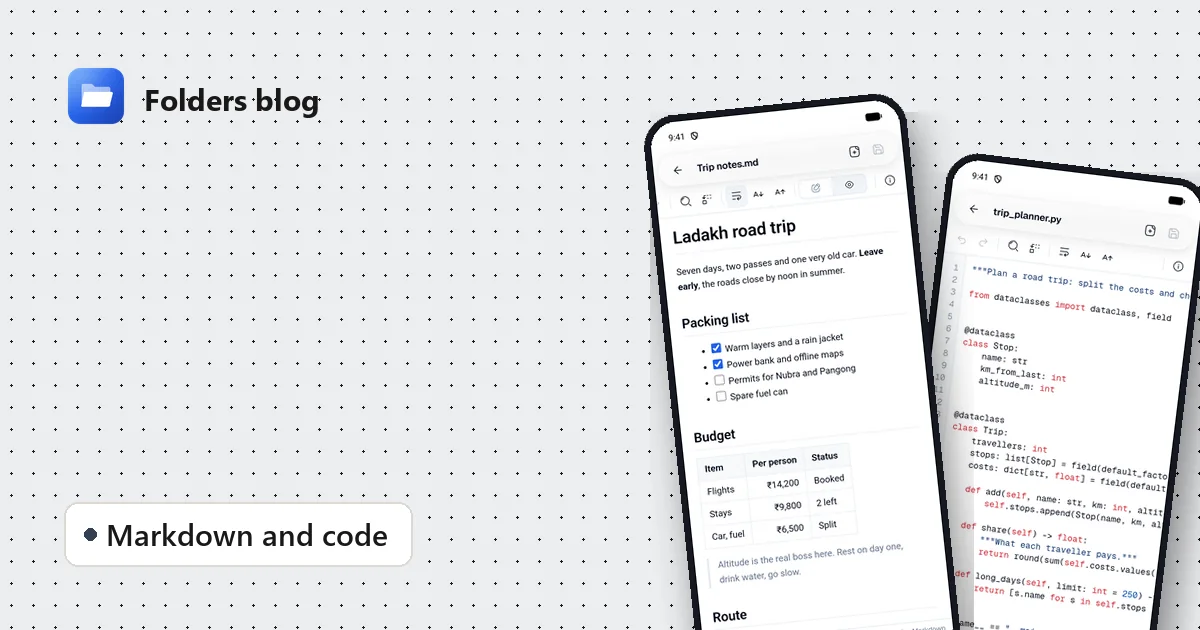
Open a .md file on most phones and you get a wall of hashes and asterisks, if it opens at all. Open a .py or .kt file and you get plain grey text with no line numbers. That’s fine for a shopping list, not for reading code or project notes.
Folders treats them as what they are: Markdown shows as a formatted page, and code shows with syntax highlighting and line numbers. Both can be edited and saved right there.
Preview a Markdown file
- Tap any
.md,.markdownor.mdxfile. - It opens in Folders’ editor with the Markdown highlighted: headings, bold text, links and code stand out.
- Tap the Preview button (the eye) in the toolbar to see the finished page. On a phone, swipe the toolbar sideways if the button is off the edge.
The preview shows headings, bold and italic text, links, lists, checklists with ticked and empty boxes, tables, quotes and code blocks, much like the page you’d see on GitHub.
Edit and preview side by side
On a tablet or a computer, there’s a third button: Edit and preview. The text goes on one side and the live page on the other, so every change shows up as you type. It’s a comfortable way to write a README, notes or documentation.
Read code with syntax highlighting
Tap a code file and it opens with colours for keywords, strings, numbers and comments, plus line numbers down the side. Folders recognises 130 kinds of code and config files, including:
- Web: JavaScript, TypeScript, JSX, TSX, CSS, SCSS, Vue, Svelte, Astro, PHP
- Apps and systems: Kotlin, Java, Swift, Dart, Go, Rust, C, C++, C#, Scala, Zig
- Scripts: Python, Ruby, Perl, Lua, R, Julia, PowerShell, shell scripts, batch files
- Data and config: JSON, YAML, TOML, XML, INI,
.env, SQL, GraphQL, Protocol Buffers, Terraform, Dockerfiles, Makefiles,.gitignore
Files without an extension that are almost always text, like README, LICENSE, Dockerfile or Makefile, open as text too.
Find your way around
The editor’s toolbar has what you’d expect from a code editor:
- Find and Find and replace, with Match case, replacing one match or all of them;
- Go to line to jump straight to line 240 of a stack trace;
- Word wrap on or off, and smaller or larger text;
- Undo and Redo;
- Format JSON to turn a squashed one-line JSON file into readable, indented text;
- Document info with the line and column, the encoding (like UTF-8) and line endings.
The status bar at the bottom always shows where your cursor is and what kind of file you’re editing.
Edit and save
Make your change and press Save. That’s enough for fixing a config file on a server you copied over, adjusting a script, or ticking off items in a Markdown checklist.
Any file that isn’t text, or that Folders doesn’t recognise, can still be opened in the hex viewer, which shows its raw bytes.
Plain text, logs and subtitles
The same editor opens plain text (.txt), logs (.log), subtitles (.srt, .vtt, .ass), contacts (.vcf), calendars (.ics), playlists (.m3u) and other text formats, with search and go to line, so a long log file is easy to look through.
Questions people ask
Is this a full IDE? No. It’s a fast viewer and editor for reading and quick fixes, not a place to build projects.
Does it work on Windows and Linux? Yes, the same editor runs there, with the side-by-side Markdown preview on wide windows.
Can I open code inside a ZIP? Yes, tap the file inside the archive. See how to open ZIP, RAR and 7z files.
Working with 3D files too? Read how to open STL, OBJ and 3MF files on Android.
Keep reading
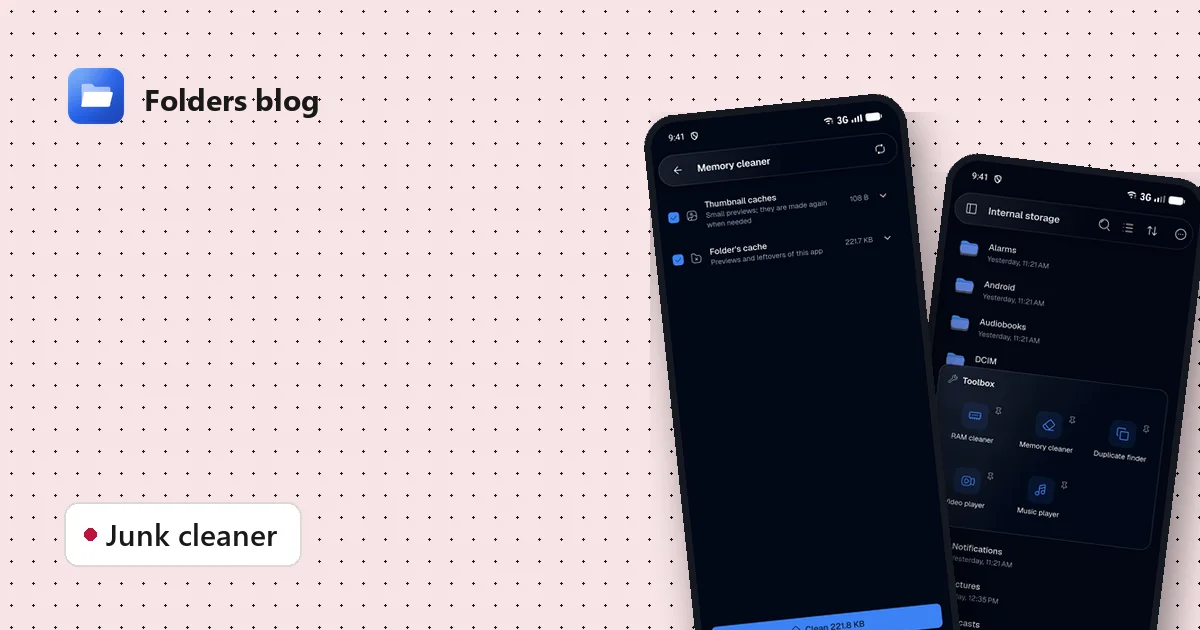
How to clean junk files on Android without deleting anything you need
Free up storage by clearing thumbnail caches, leftovers and other junk, with a cleaner that only ticks what's certainly safe to delete and shows you everything else first.
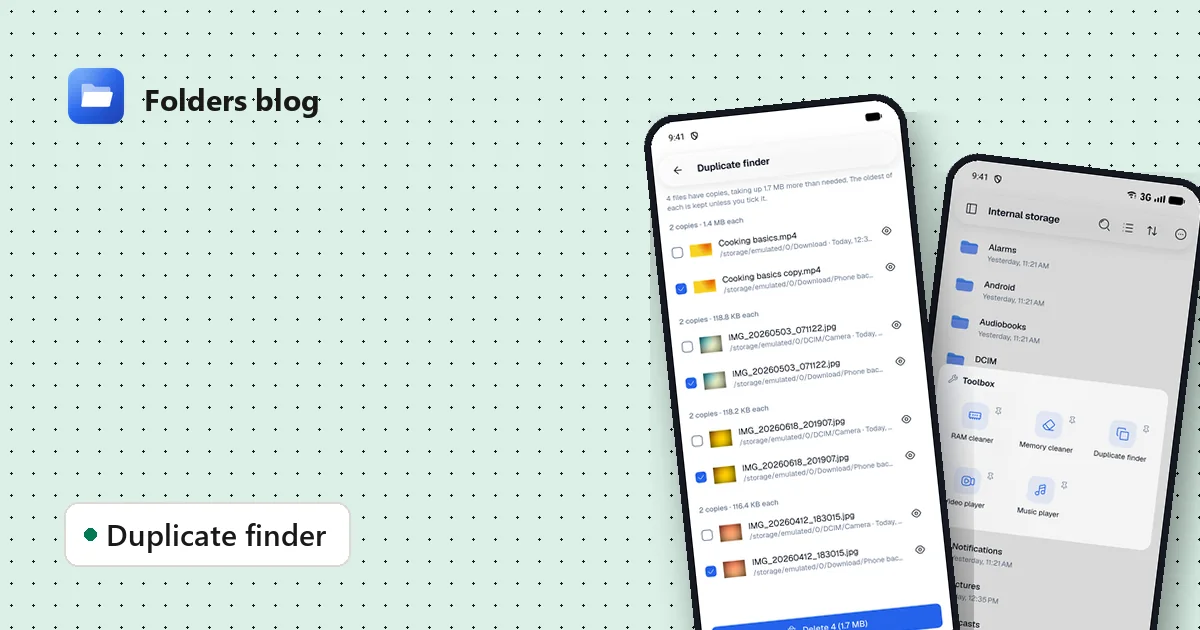
How to find and remove duplicate files safely
Duplicate photos, videos and downloads waste gigabytes. Find true copies by their contents, not their names, keep the oldest of each and delete the rest, on Android, Windows or Linux.
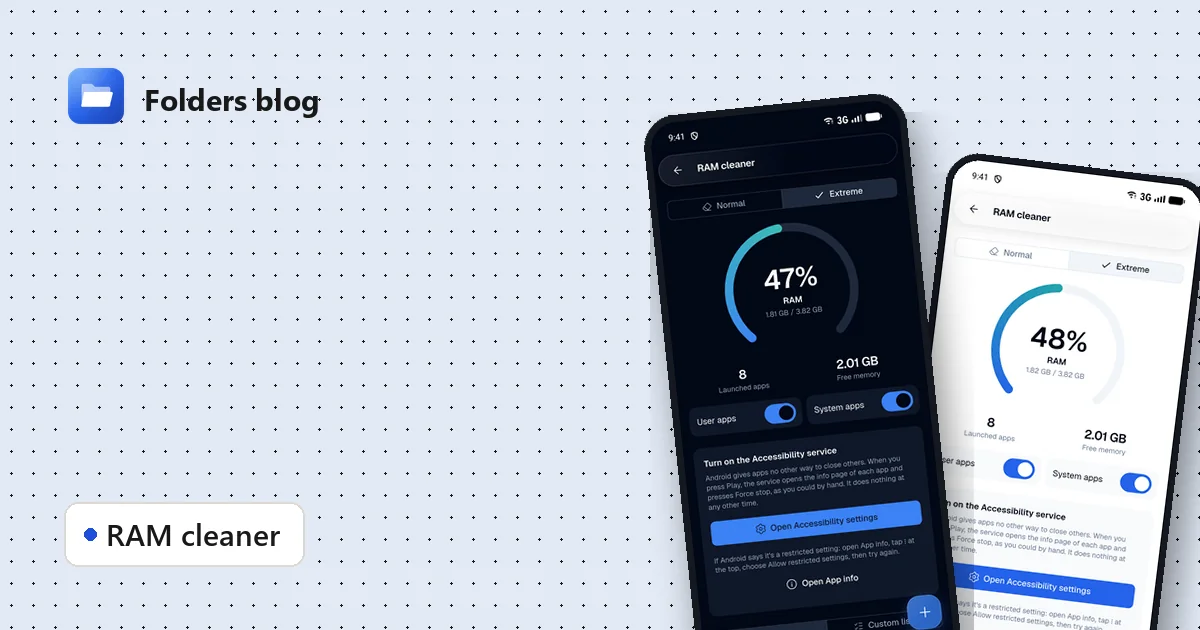
How to free RAM on Android 14 and newer, now that apps can't close other apps
Since Android 14, RAM cleaner apps can't close background apps any more. Here's why, when freeing memory actually helps, and how Folders' Extreme mode still does it, safely.