 Folders
A Windows file explorer with tabs, and the shortcuts that make it fast
Folders on Windows and Linux: tabs, multiple windows, drag and drop with File Explorer, a see-through window and the keyboard shortcuts you already know. Free and open source.
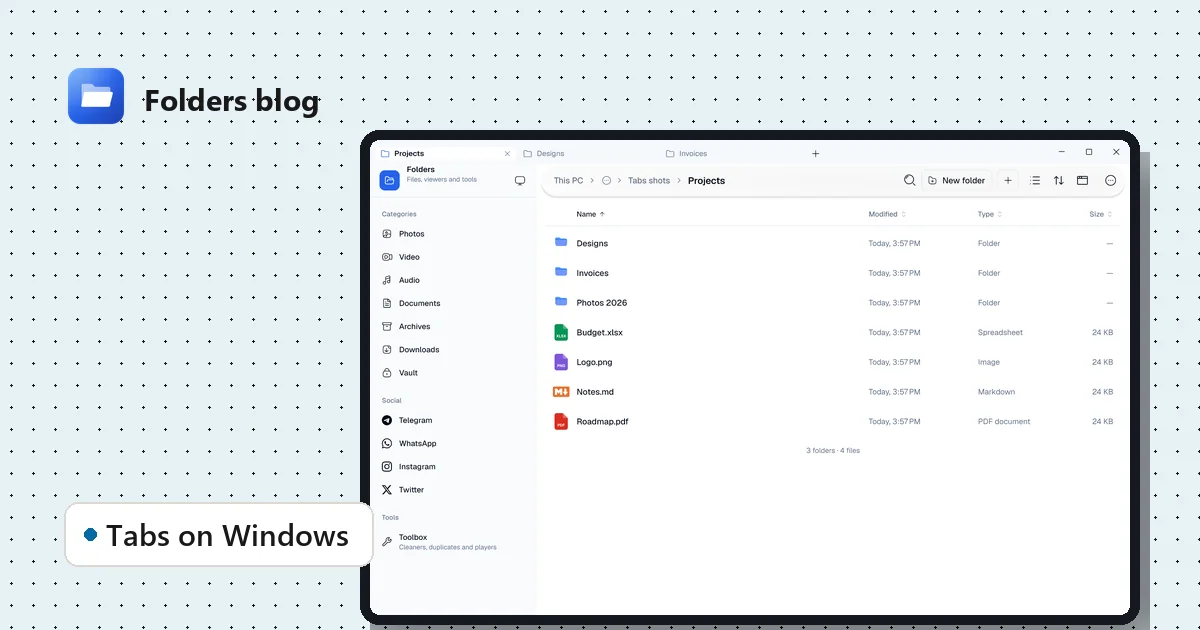
Folders started on phones, but it’s just as much at home on a Windows or Linux computer. The desktop version has tabs in the title bar, multiple windows, drag and drop, a see-through window and the same built-in viewers as on Android: PDFs, Office files, 3D models, code and Markdown, archives and a full video player.
This guide covers the parts that make it fast to use with a keyboard and mouse.
Install it
From the download section:
- Windows 10 and 11: the installer (recommended; it doesn’t need admin rights) or the MSIX package. The installer adds Folders to the Open with menu for the file types it handles, so you can right-click a file in File Explorer and open it in Folders.
- Linux: deb for Debian and Ubuntu, rpm for Fedora and openSUSE, or AppImage, Flatpak, Snap or a portable archive for any distribution.
Tabs
On Windows, Folders’ tabs live in the title bar, next to the window buttons, like a web browser. (On Linux, they sit just under the system’s own title bar.) Each tab keeps its own folder, and files you open stay inside their tab.
| Shortcut | What it does |
|---|---|
| Ctrl+T | New tab |
| Ctrl+W | Close the tab |
| Ctrl+Tab | Next tab |
| Ctrl+1 to Ctrl+9 | Go to tab 1 to 9 |
| Middle-click a folder | Open it in a background tab |
The window’s title follows the tab you’re on, so the taskbar always shows where you are.
Everyday shortcuts
The keys you know from other file managers work in Folders:
| Shortcut | What it does |
|---|---|
| Ctrl+C, Ctrl+X, Ctrl+V | Copy, cut and paste |
| Ctrl+A | Select everything in the folder |
| Ctrl+N | New folder, named right where it appears |
| Ctrl+F | Search in this folder and below |
| F2 | Rename |
| F5 | Refresh |
| Delete | Delete |
| Esc | Cancel, or clear the selection |
| Space | Peek at a file without opening it |
| Arrow keys, Home, End, Page Up/Down | Move through the files; add Shift to select as you go |
| Ctrl+plus, Ctrl+minus, Ctrl+mouse wheel | Bigger or smaller icons |
Selecting with the mouse
A click selects a file, Ctrl-click adds or removes one, and Shift-click selects everything in between. Drag on an empty spot to draw a selection box around several files.
Works with File Explorer
Folders doesn’t live in its own bubble:
- Copy and paste between Folders and File Explorer both ways, since Folders uses the Windows clipboard for files.
- Drag files in from File Explorer or the desktop and drop them on a folder.
- Big copies run in the background, with their progress in a dock at the bottom right. If you close the window while a copy is still running, Folders can carry on from the system tray until it’s done.
Make it look right
In Options, you can choose:
- a style: Folders’ own, a Windows style with yellow folders, or the dark Sweet and Dracula styles with their own icon sets;
- light, dark or the system’s mode, and an accent colour;
- a window effect: on Windows, Acrylic gives a blurred, see-through window, with a Transparency slider to set how much of your desktop shows through.
Also on a computer
- This PC shows your drives with their free space, plus categories like Photos, Videos and Documents gathered from your user folders.
- New file (the + next to New folder) makes a blank text file, Word document, spreadsheet and more, which opens in its editor right away.
- Convert to ▸ and Resize… work on photos straight from the right-click menu. See how to convert HEIC photos.
- Nearby share sends files to your phone; it works with LocalSend too. See how to move files between phone and PC.
Questions people ask
Does Folders replace File Explorer? It doesn’t remove or change File Explorer; it works alongside it. Use whichever suits the job, and copy, paste and drag between them.
Is it free on Windows? Yes: free, no ads, no account, and open source under the GPL-3.0 licence.
Does it run on Linux desktops like KDE and GNOME? Yes. The see-through window effect depends on your desktop: KDE on X11 can blur what’s behind the window.
Keep reading
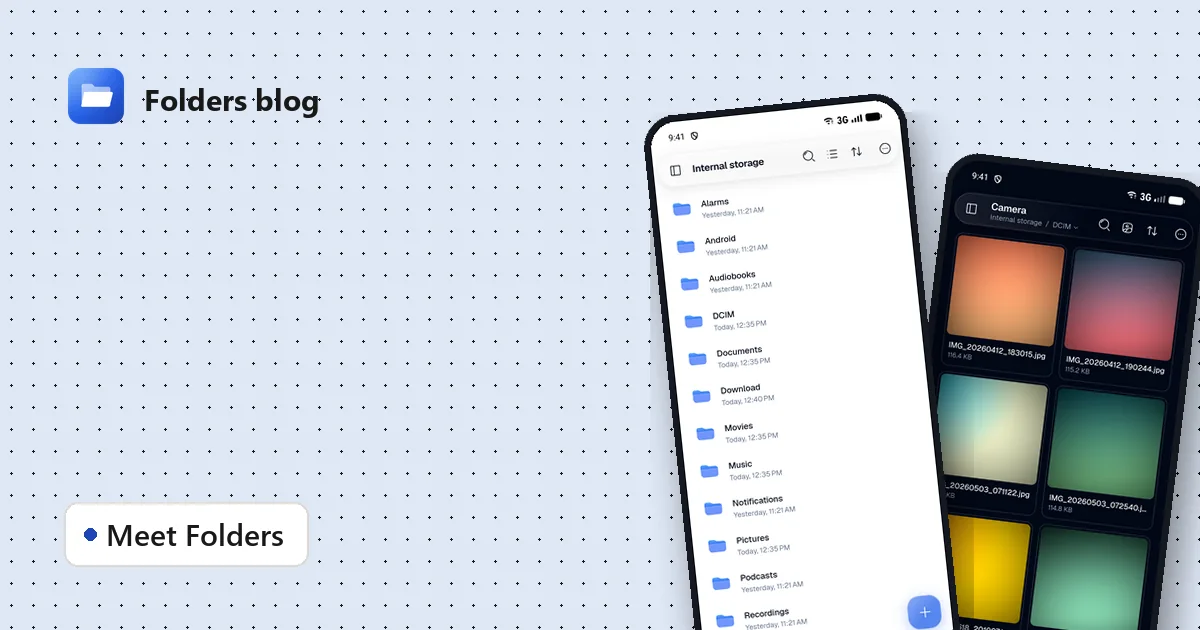
Meet Folders: one free app for 382 kinds of files
Folders is a free, open-source file manager for Android, Windows and Linux that opens PDFs, Office files, 3D models, code, videos and archives itself, with no ads and no account.
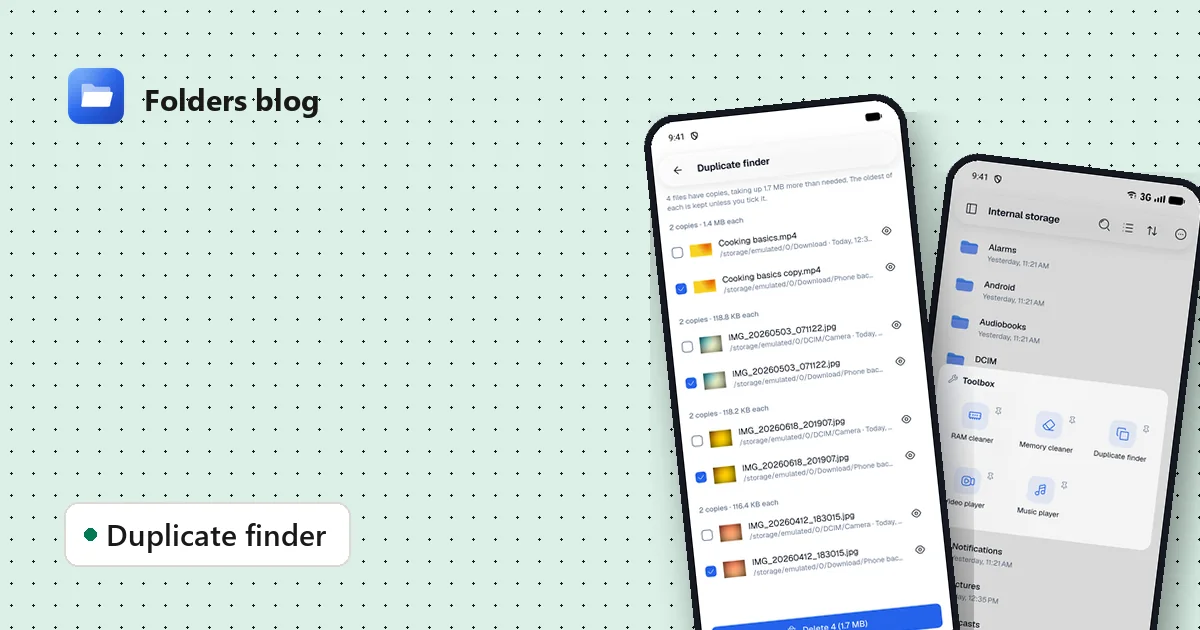
How to find and remove duplicate files safely
Duplicate photos, videos and downloads waste gigabytes. Find true copies by their contents, not their names, keep the oldest of each and delete the rest, on Android, Windows or Linux.
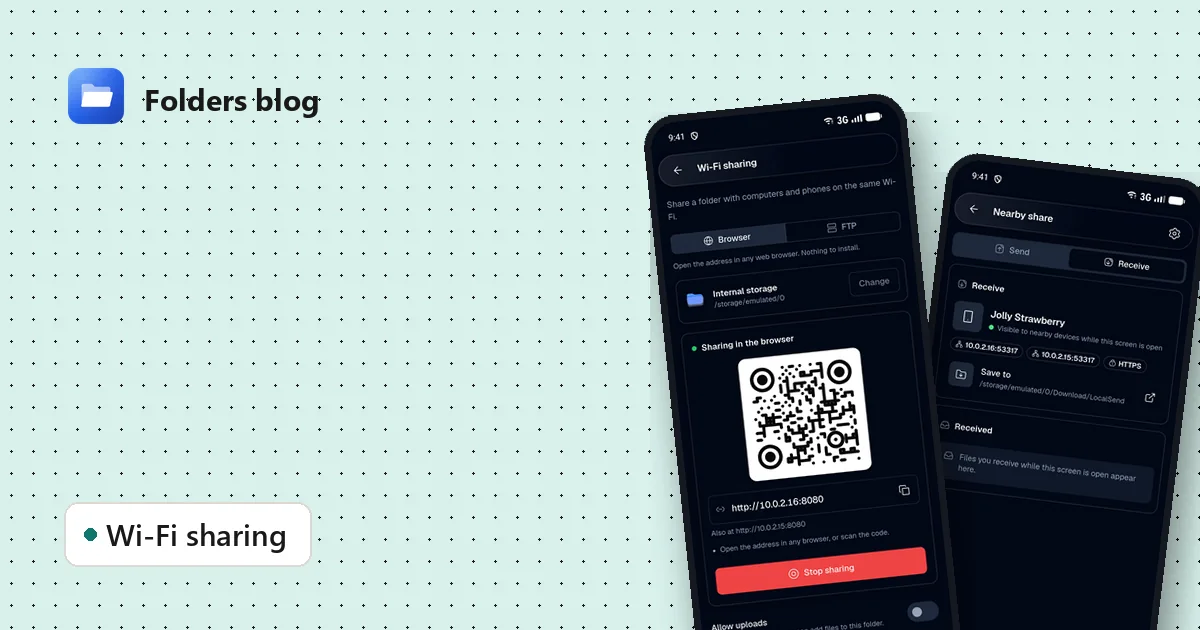
How to move files between your phone and PC over Wi-Fi, without a cable
Two free ways to send photos, videos and documents between Android and a computer on the same Wi-Fi: a browser link with a QR code, or Nearby share that works with LocalSend.